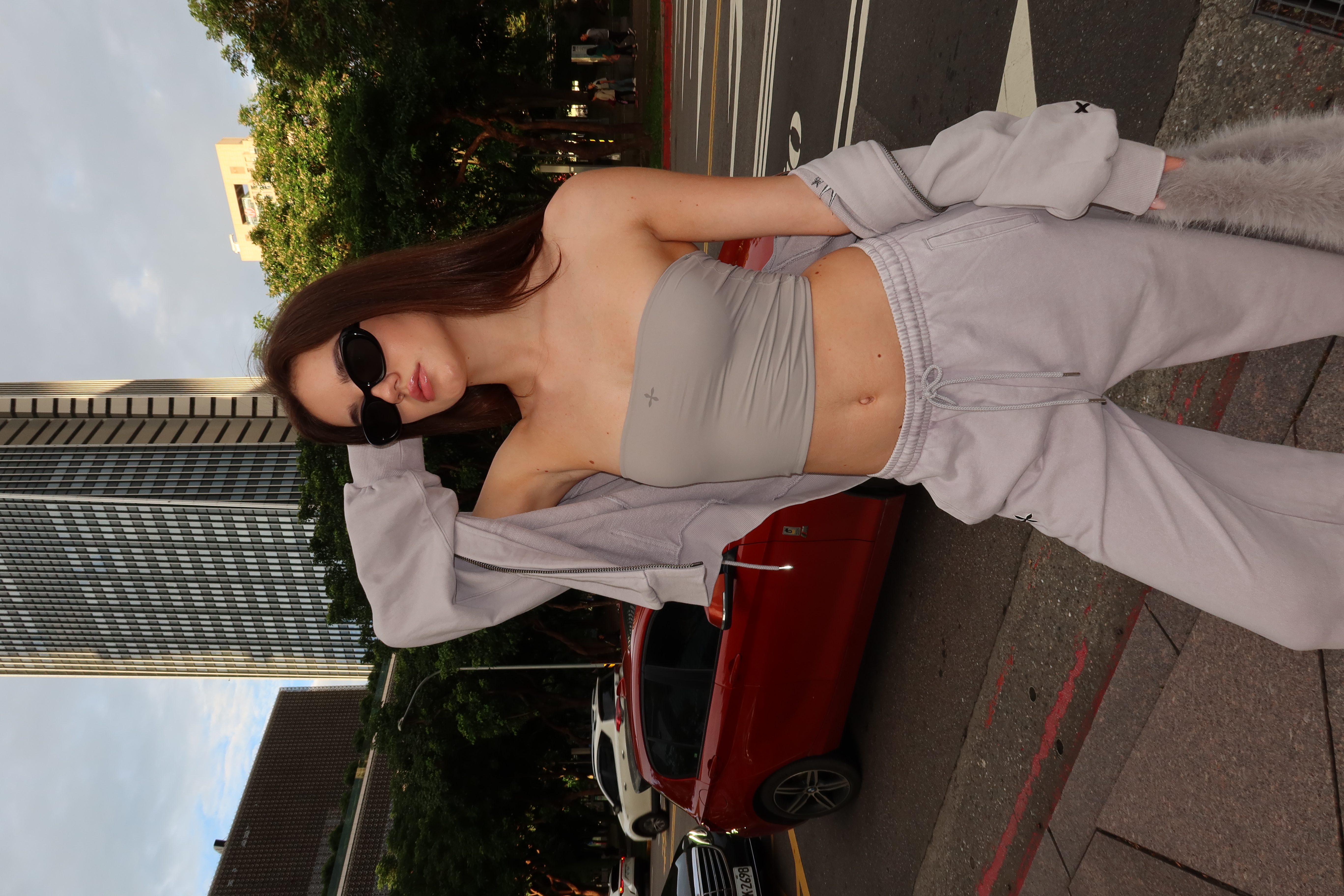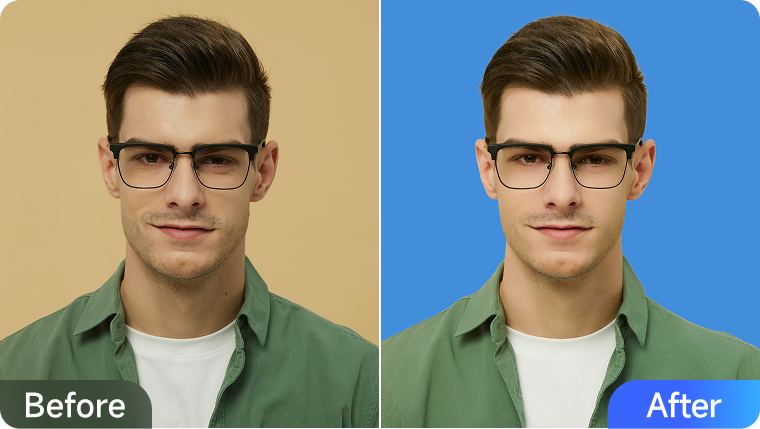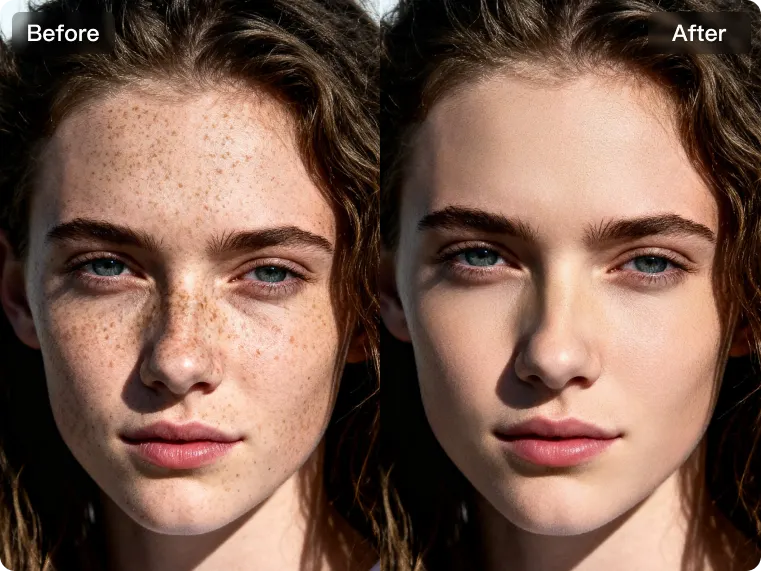
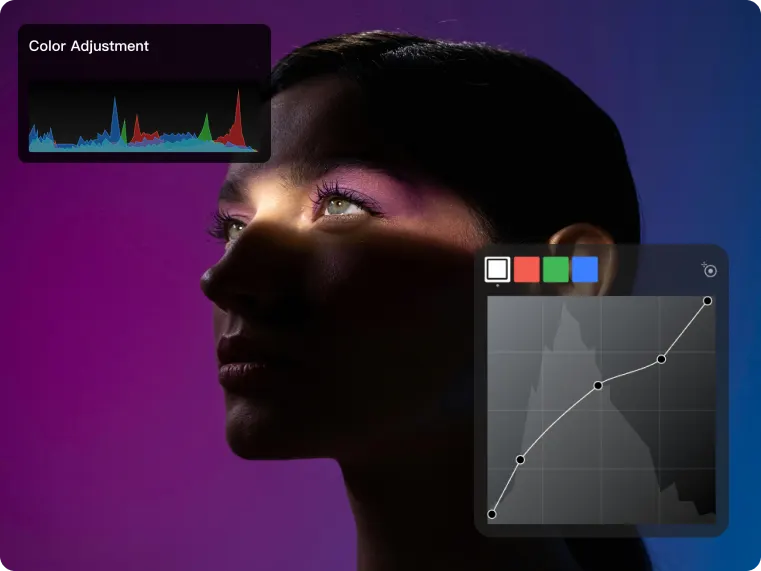

Kumoo’s AI Tattoo Removal tool gives you a faster way to remove a tattoo from a photo and restore a cleaner-looking skin area.

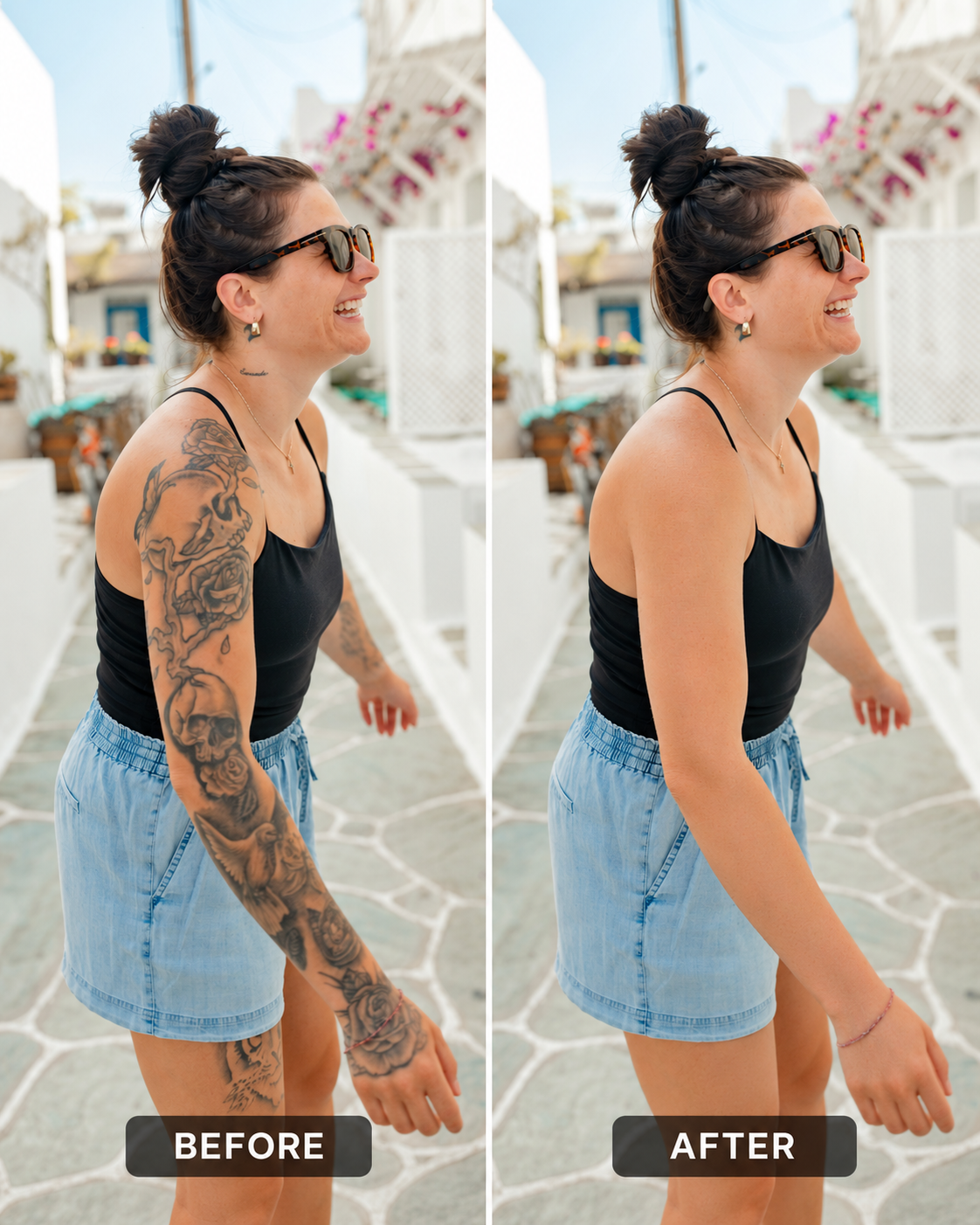
Sometimes a tattoo works for the photo. Other times, it distracts from the subject, clashes with a campaign’s styling, or simply does not fit the version of the image you want to use.
Traditional retouching can remove a tattoo, but it often takes time. You may need to work around skin texture, lighting, shadows, and the natural shape of the body. For a single portrait, that can be manageable. For a full set of images, it becomes a repetitive editing task.
Kumoo’s AI Tattoo Removal tool gives you a faster way to remove a tattoo from a photo and restore a cleaner-looking skin area.
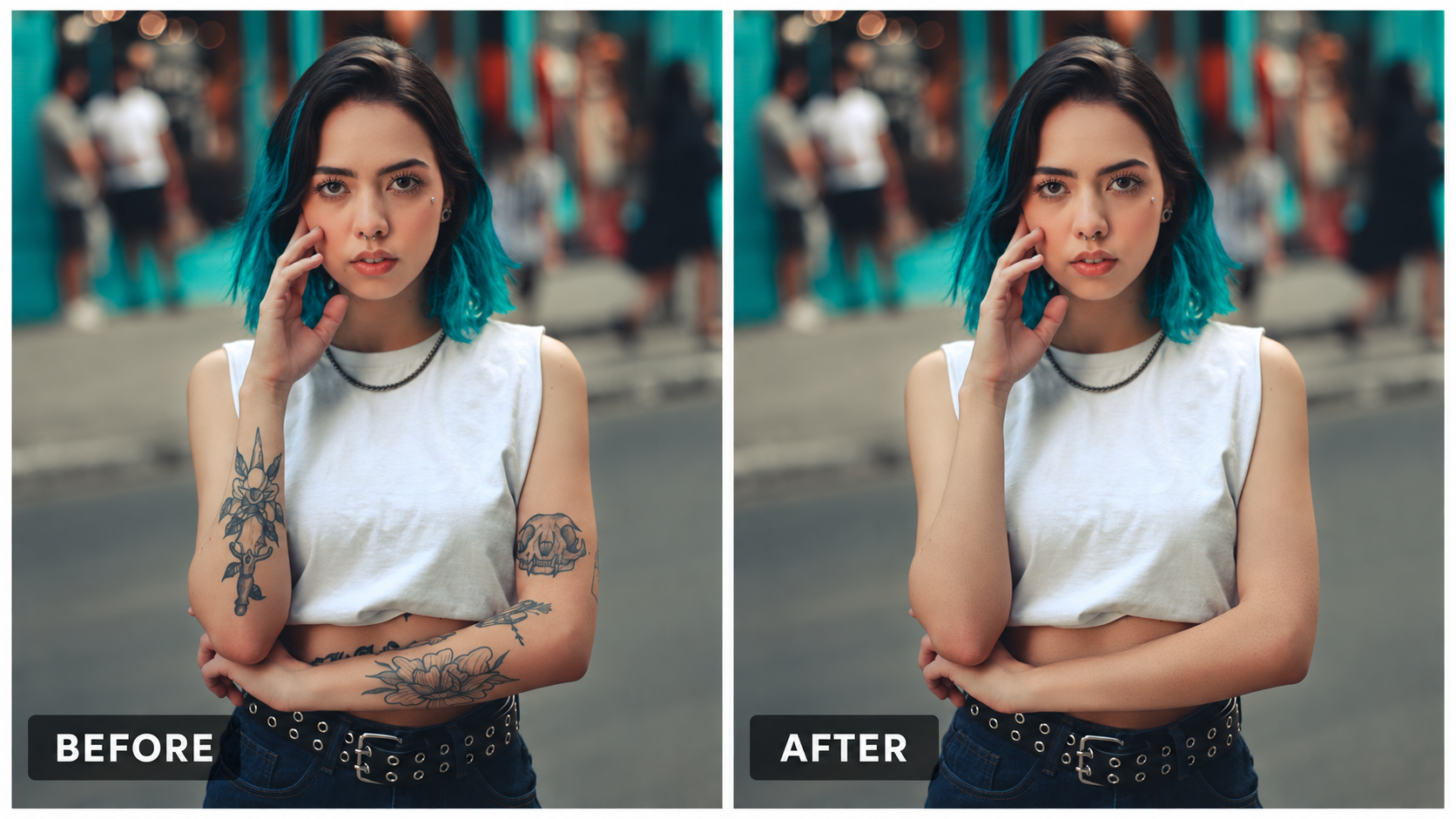
A tattoo is not just a flat mark on the skin. It follows the body’s shape, appears differently under different lighting conditions, and may overlap with skin texture, hair, clothing, or shadows.
That is why a simple blur or clone stamp can leave an edited area looking too smooth or uneven. A convincing result needs to preserve the look of the surrounding skin while reducing the visibility of the tattoo.
AI-assisted editing can make that process faster by identifying the tattoo area and rebuilding the image around it.
Kumoo’s Tattoo Removal tool is designed for photo retouching. It can help remove visible tattoos from portraits and lifestyle images while keeping the edit suited to the rest of the photo.
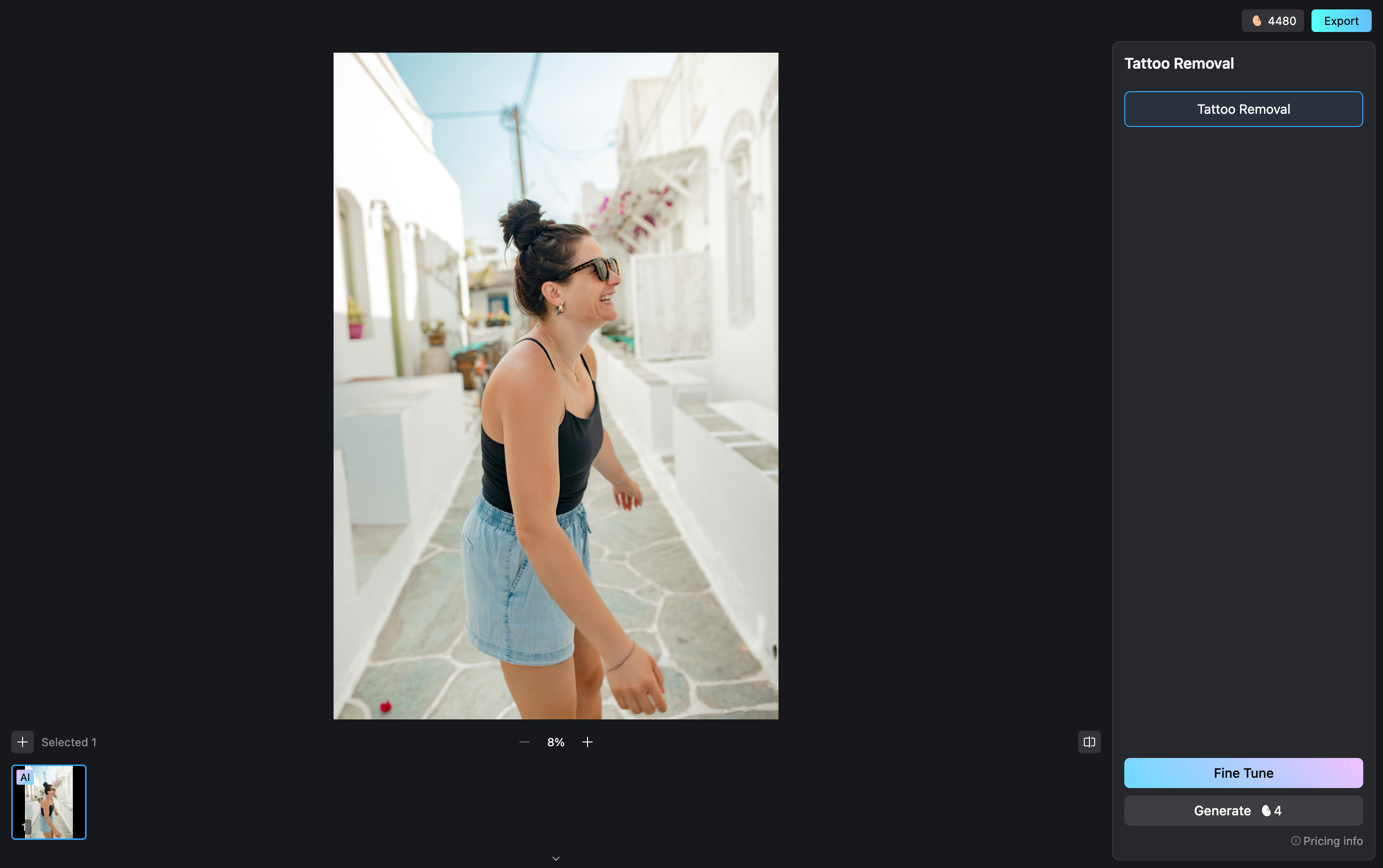
The workflow is simple:
Upload the image you want to edit.
Select Kumoo’s Tattoo Removal tool.
Let the AI process the tattoo area.
Review the result and export the edited image when you are happy with it.
This is useful when you need a cleaner version of an image without spending time on detailed manual retouching.

Tattoo removal in photos can be useful in a range of creative and commercial workflows.
A photographer may need a version of a portrait with fewer visual distractions. Removing a tattoo can help keep the focus on the face, clothing, or overall mood of the image.
For a fashion campaign, tattoos may not always match the styling, brand direction, or collection being presented. A tattoo-free version can give the creative team more flexibility when selecting final images.
When a model appears in product images, the product should remain the main focus. Removing a visible tattoo can help create a cleaner, more consistent presentation across a catalog.
Creators often make several versions of the same image for different platforms or audiences. A tattoo-free edit can be one option among several visual directions.
The goal is not to make skin look flat or overly processed. After using an AI tattoo remover, check the edited area closely.
Look for:
Skin texture that matches the surrounding area
Natural transitions around shadows and highlights
Consistent color across the edited skin
Clean edges near clothing, hair, or accessories
Using a clear, well-lit source image can also improve the final result. If the tattoo is partly hidden, blurred, or heavily covered by shadows, review the output carefully before publishing.
Kumoo’s Tattoo Removal tool is for visual photo editing. It does not remove a real tattoo from someone’s skin.
Always edit images you own or have permission to use. For documentary, professional, or identity-related photos, make sure any alteration is appropriate for the context and clearly disclosed when necessary.
When you need to remove a tattoo from a photo, you do not always need a long manual retouching process. Kumoo helps you create a cleaner image quickly, so you can spend more time choosing the right final shot.