







Master tethered shooting in three simple steps!
Use a USB cable with data transfer capability to connect your camera to your computer.
1. Power on your camera and ensure a memory card is inserted.
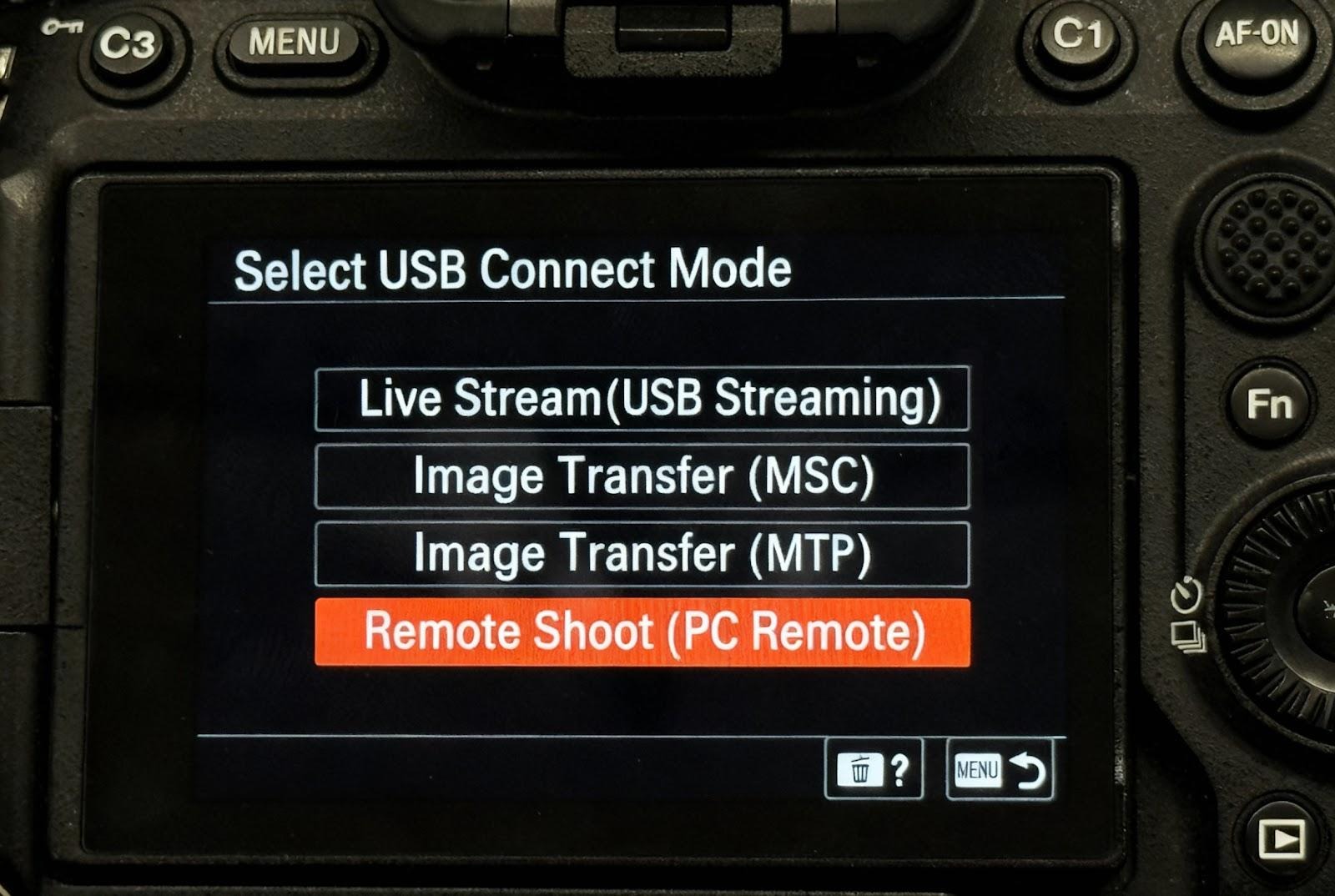
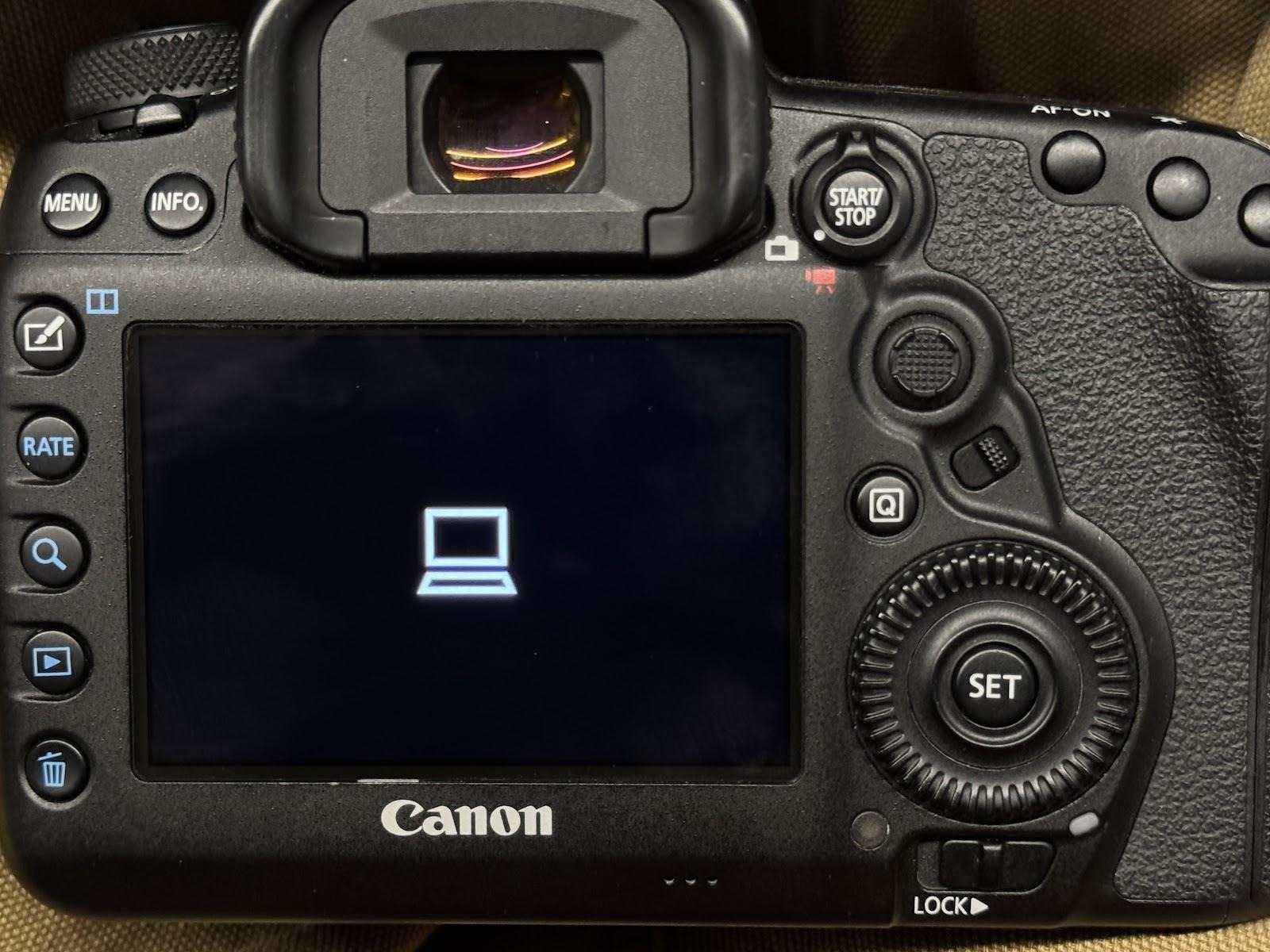
2. Open the camera menu and set USB Connection Mode to “PC Connection” or “PTP”
(naming may vary by brand; choose the mode corresponding to computer connection). Alternatively, select “Remote Shoot” from the pop-up menu on ce connected.
Launch Kumoo on your computer (ensure you are using version 7.5.0 or later). Click the "Tethered Shooting" entry in the main navigation bar.
If your settings and cable are correct, the app will automatically detect and connect to your camera. If it fails to connect, click the "Connect" button to retry or refer to the "Troubleshooting" section below.
Once successfully connected, the interface will display a real-time Live View and current camera parameters.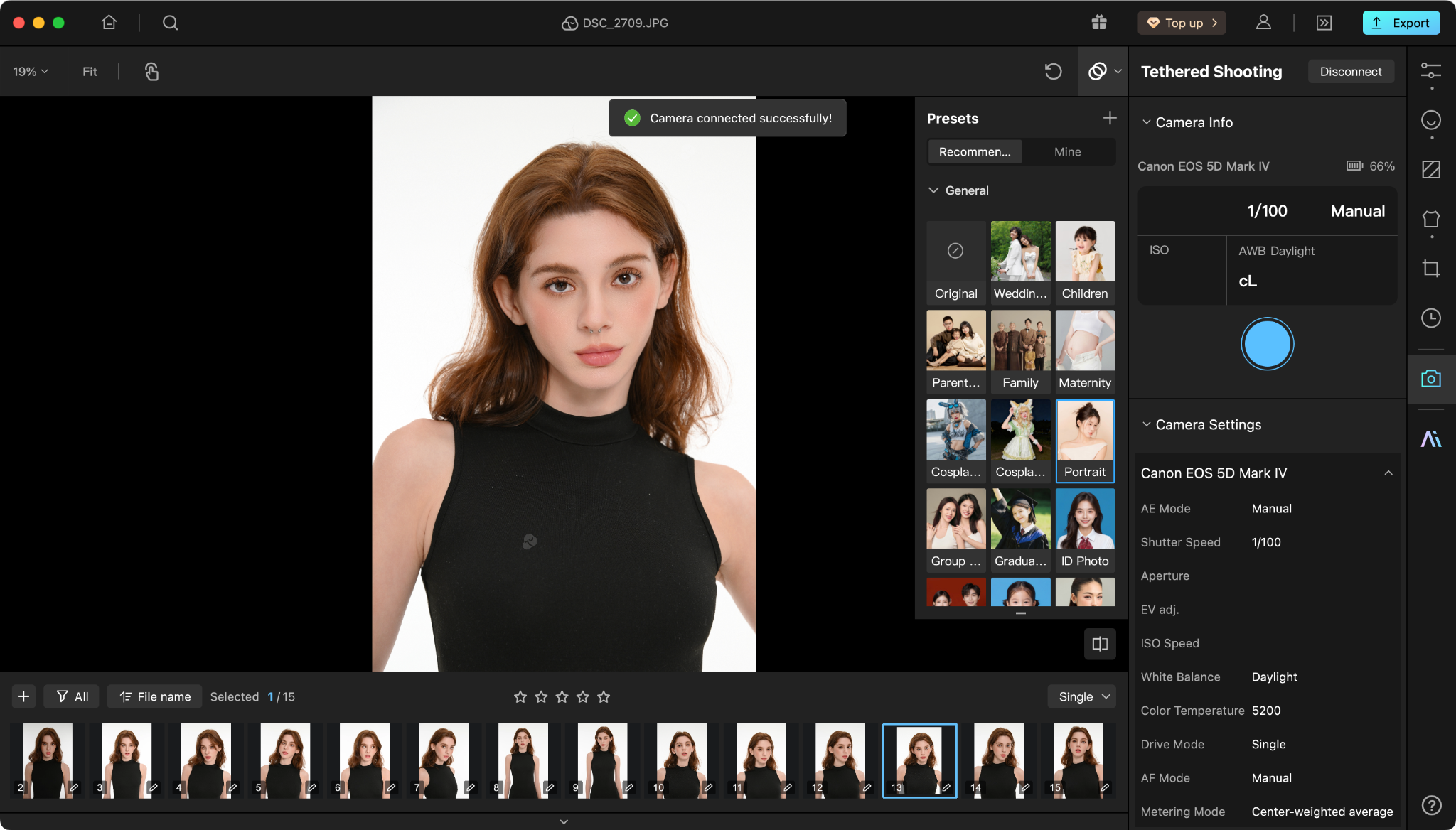
Use the virtual shutter button and the parameter adjustment panel within the software to trigger the camera and edit images in real-time.
Originals: By default, original files are saved to: C:\Users\[Username]\Pictures\TetheredShooting_ColorBytePro.
Photos exported after editing will be saved according to the path specified in the Export Panel, enabling instant backup and seamless organization.
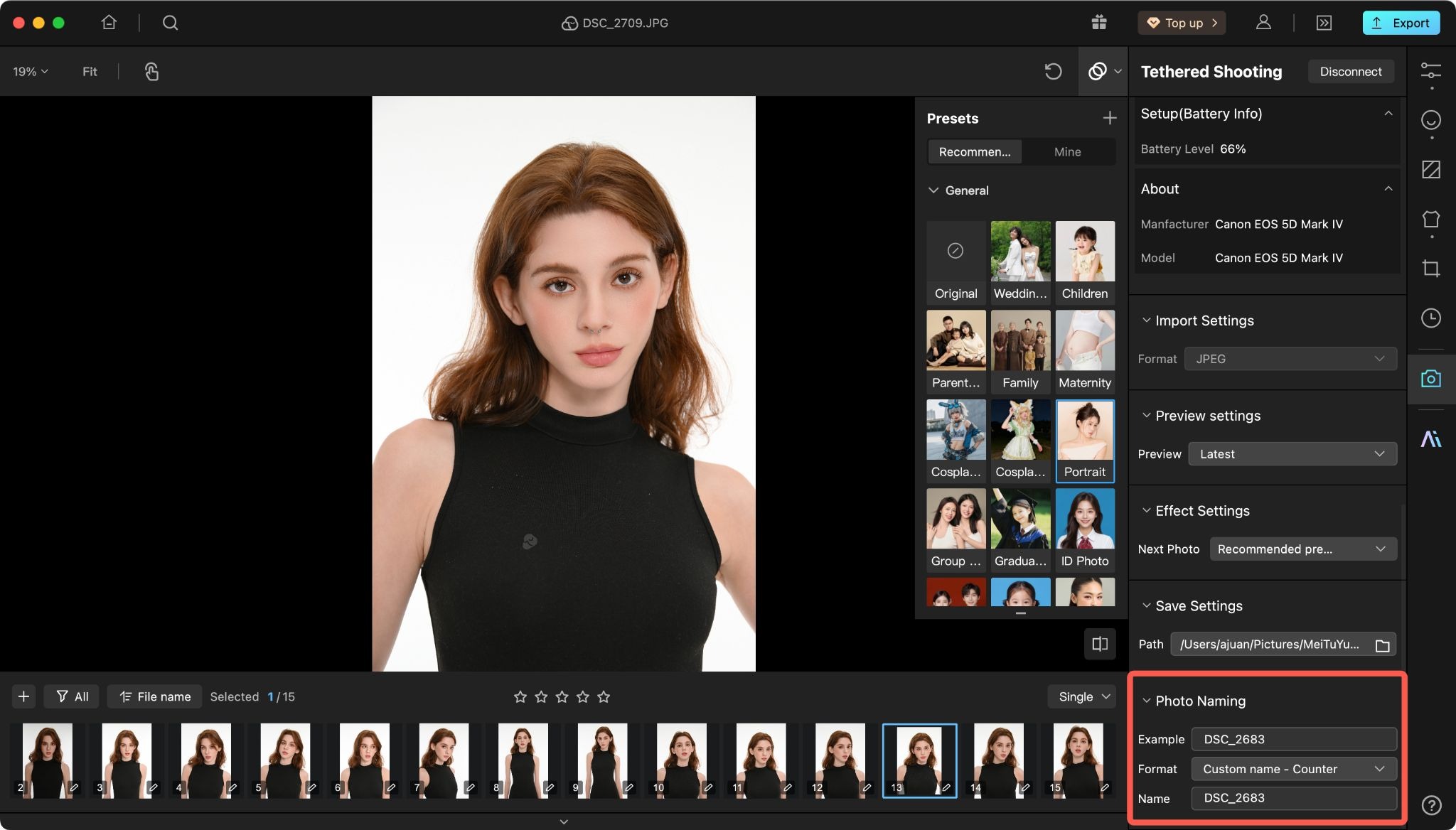
After connecting your camera to your computer and entering Kumoo, the software will automatically detect your camera model. Click the Camera Icon on the far right to access the Tethered Shooting feature.
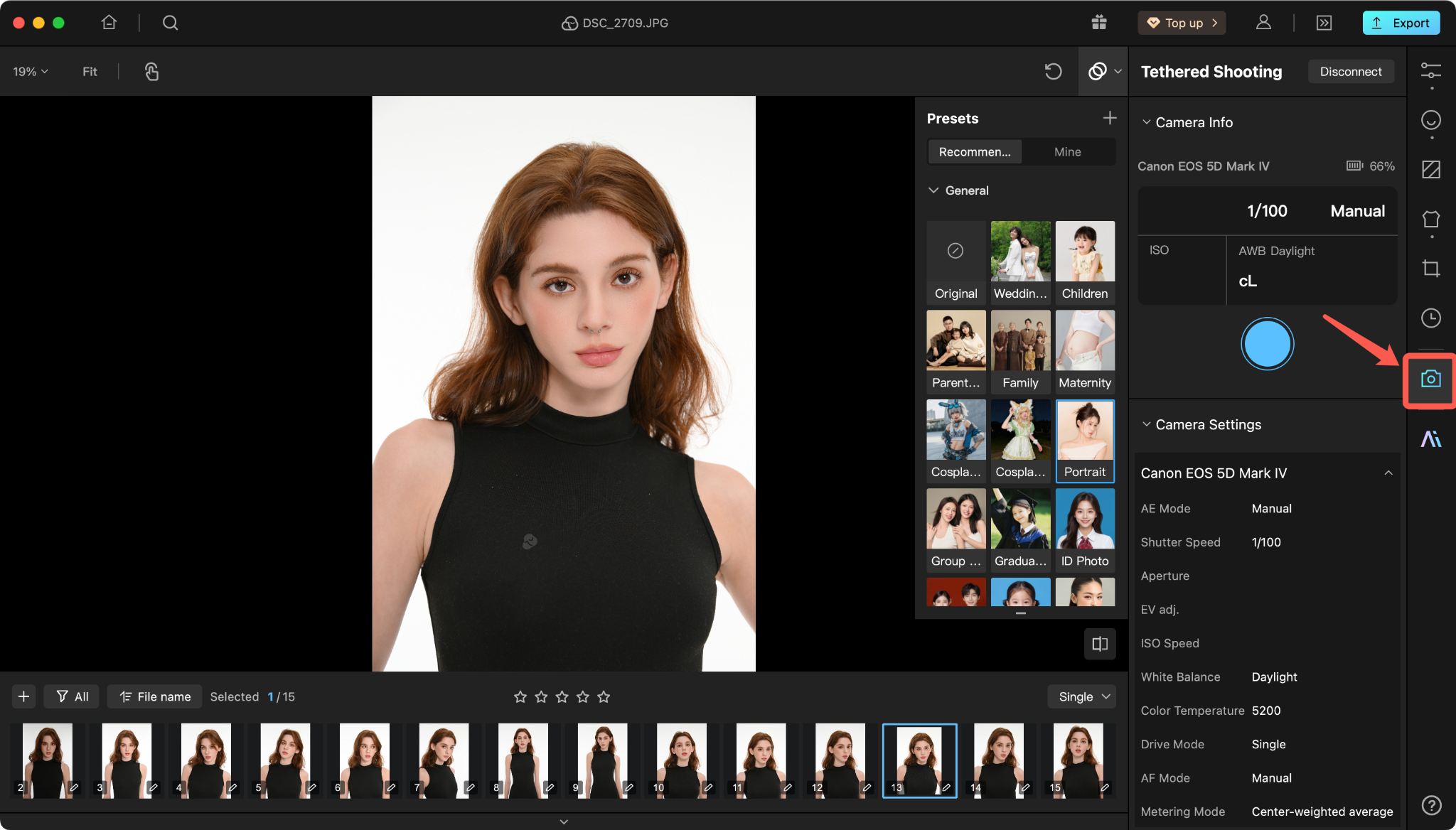
Displays essential metadata such as Aperture, ISO, and Shutter Speed. You can trigger the camera directly using the software's shutter function.
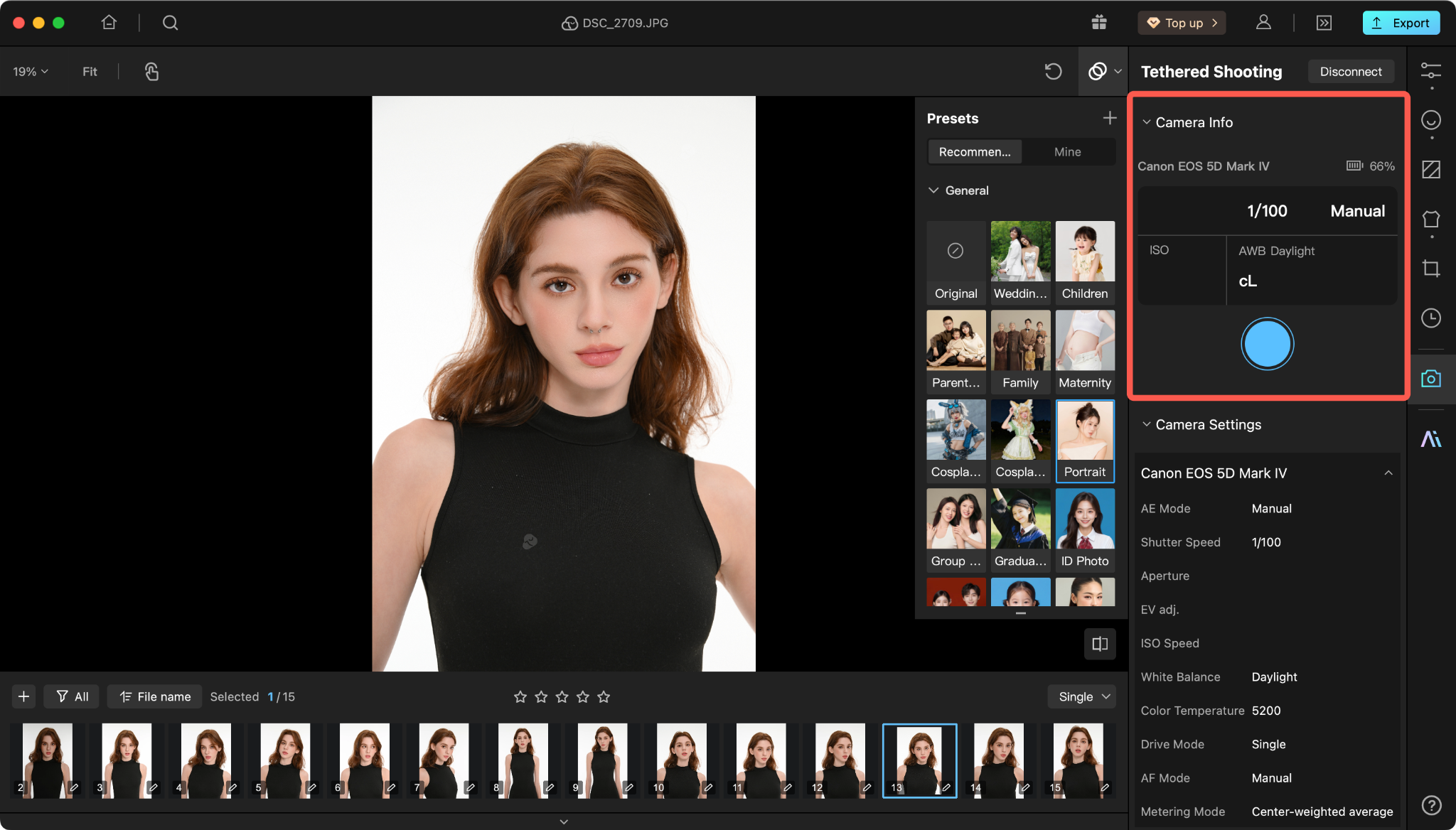
Provides detailed information regarding your camera, including model specifications and specific shooting options.
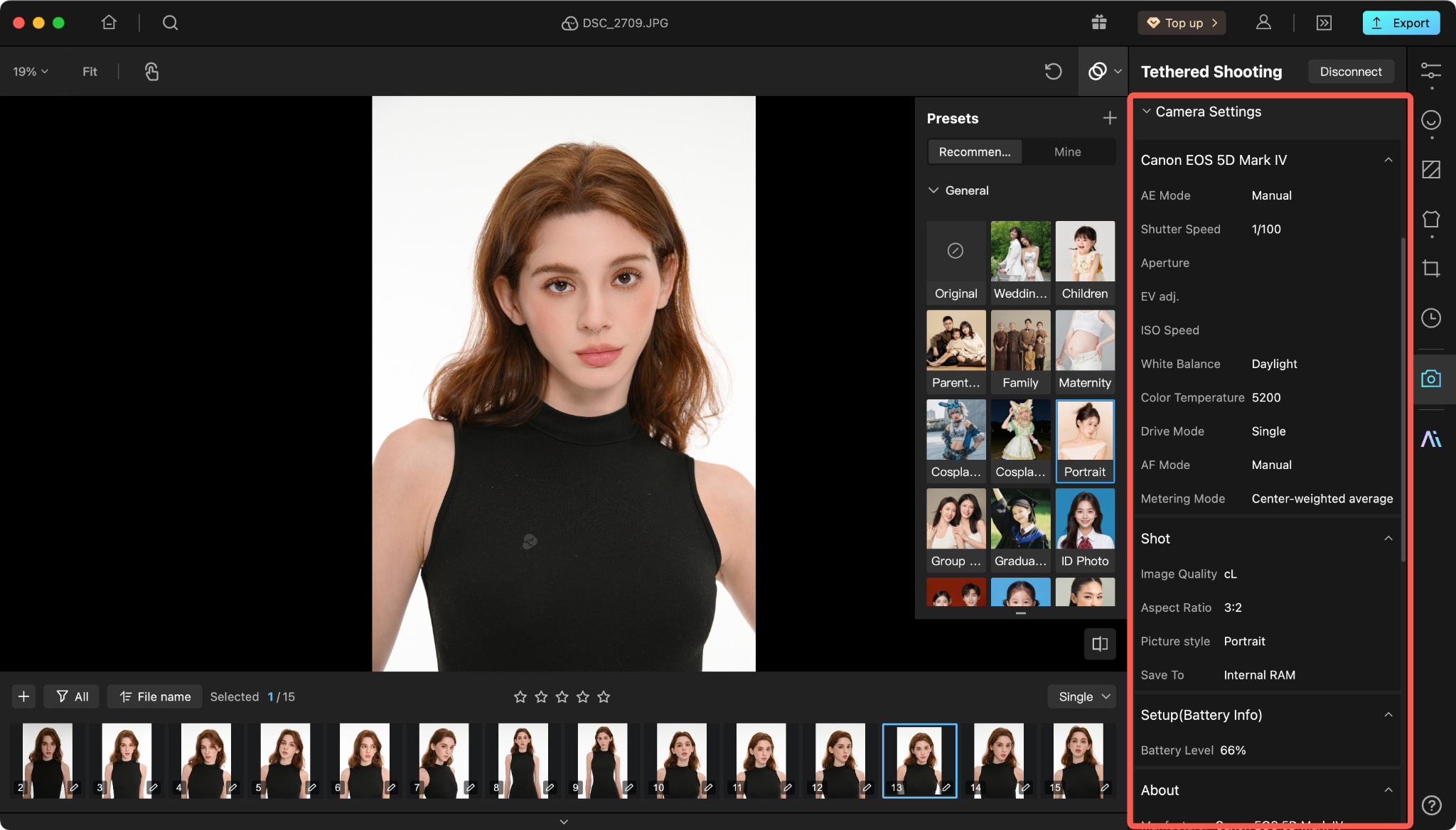
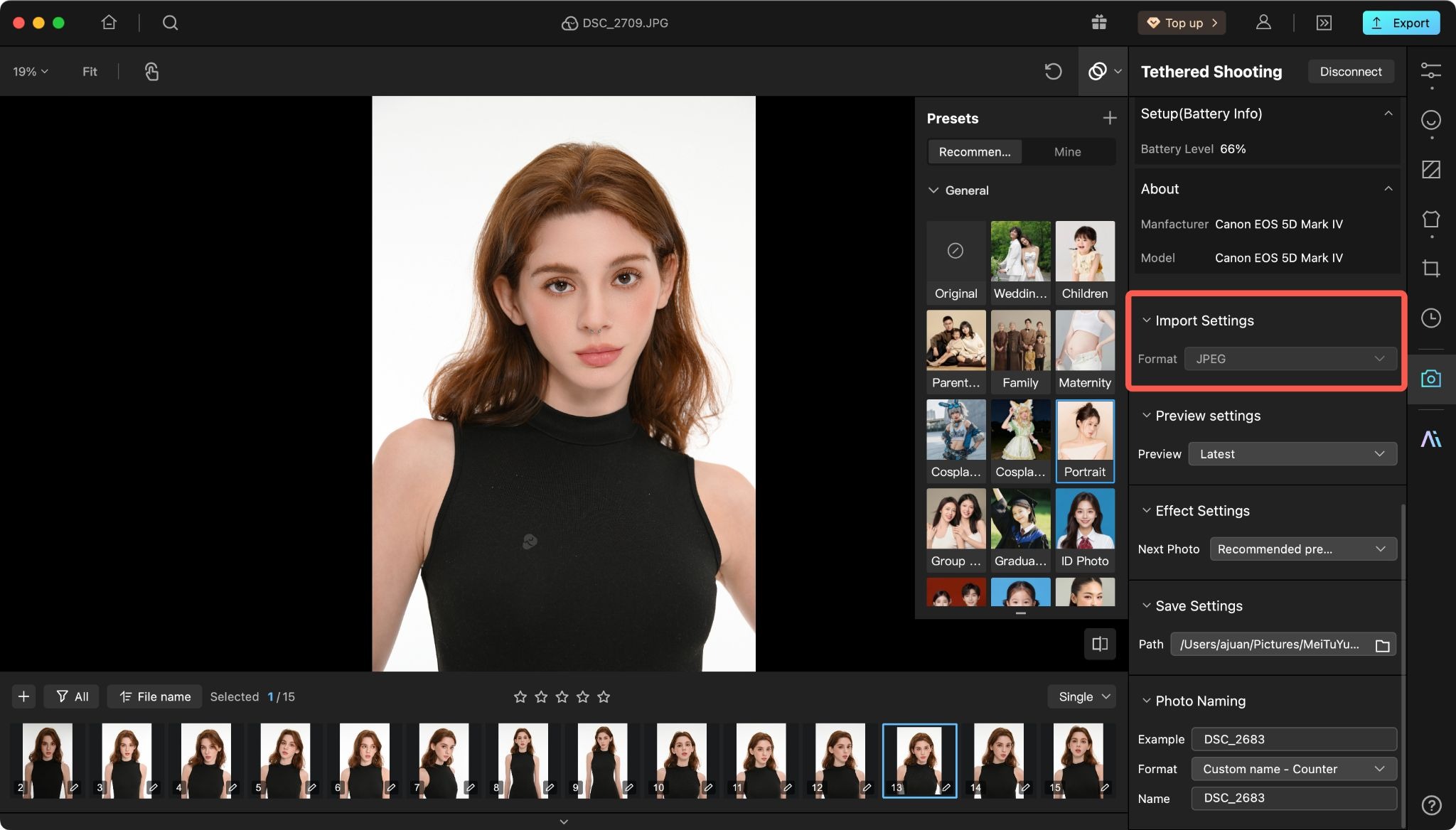
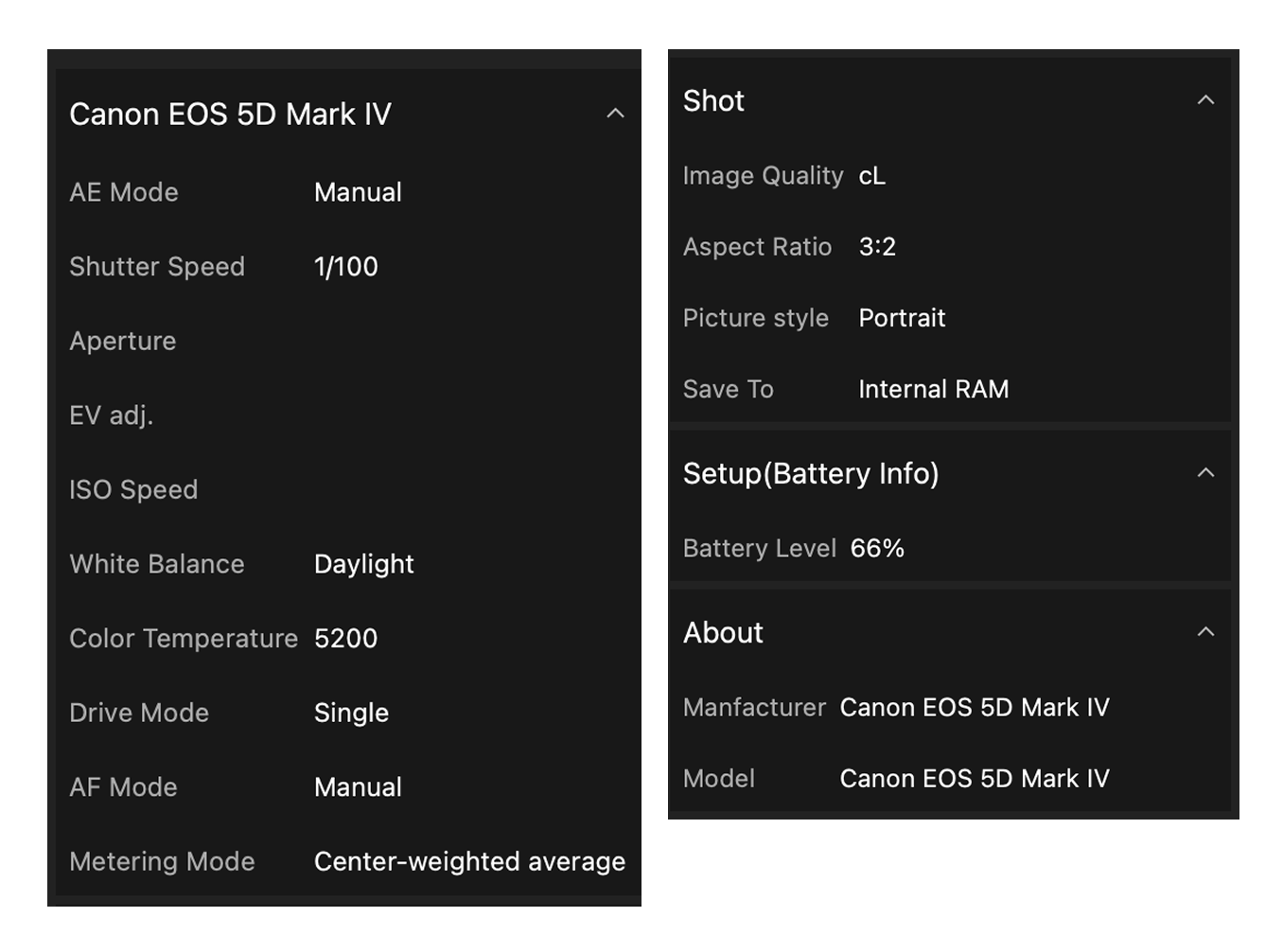 Import Settings
Choose which file formats are transferred to Kumoo based on your camera's internal settings:
1. If the camera is set to RAW + JPEG, the default import option is "RAW & JPEG," with "Only RAW" or "Only JPEG" as available alternatives.
2. If the camera is set to "Only RAW" or "Only JPEG", Kumoo will match the camera setting automatically, and the options will be grayed out.
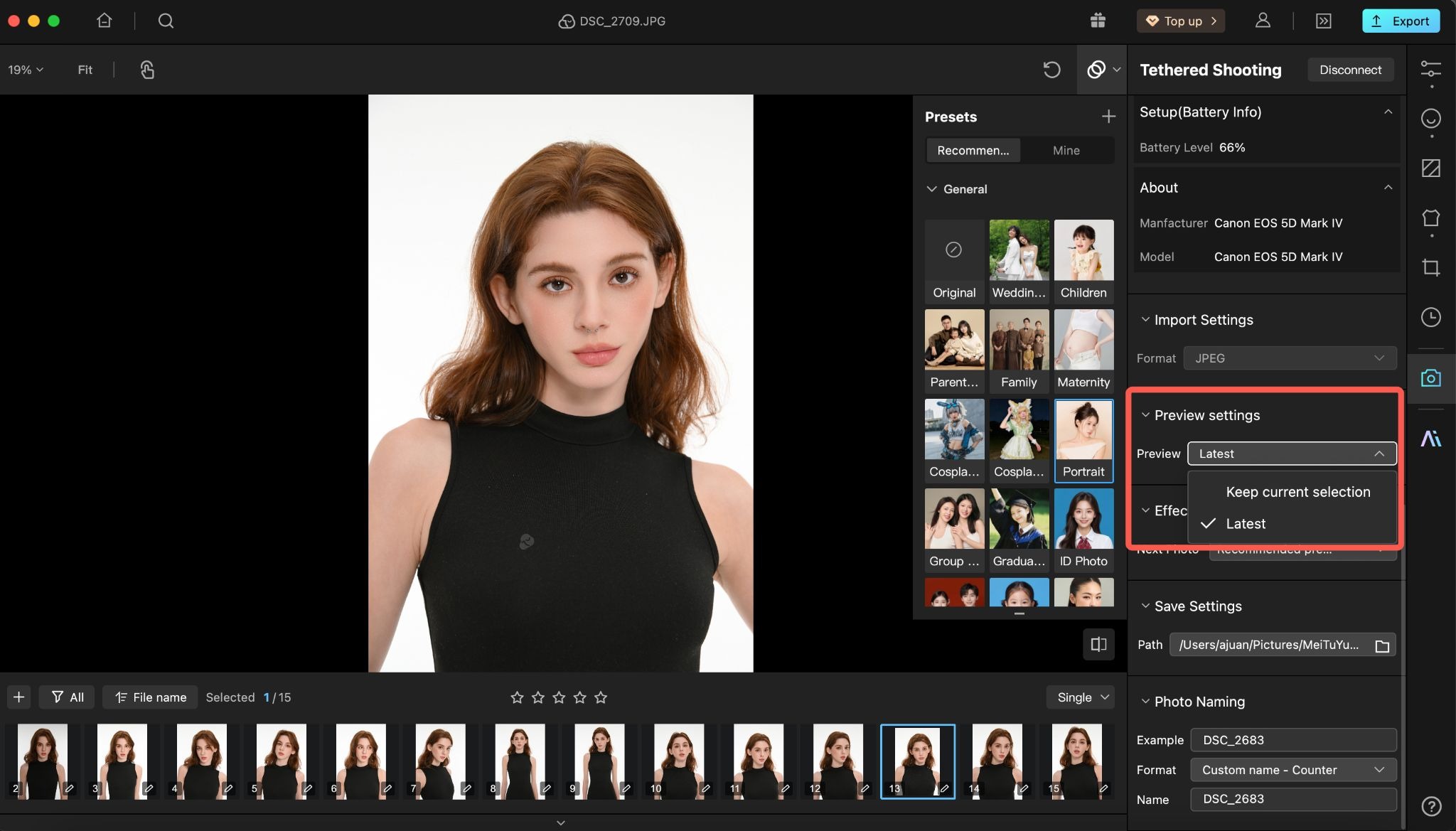
Toggle between "Latest" (Default) and "Keep current selection."
1. Latest: The preview area automatically updates to display the most recent shot taken in tethered mode.
2. Keep current selection: The preview area remains on the currently selected image and does not refresh when new shots are taken.
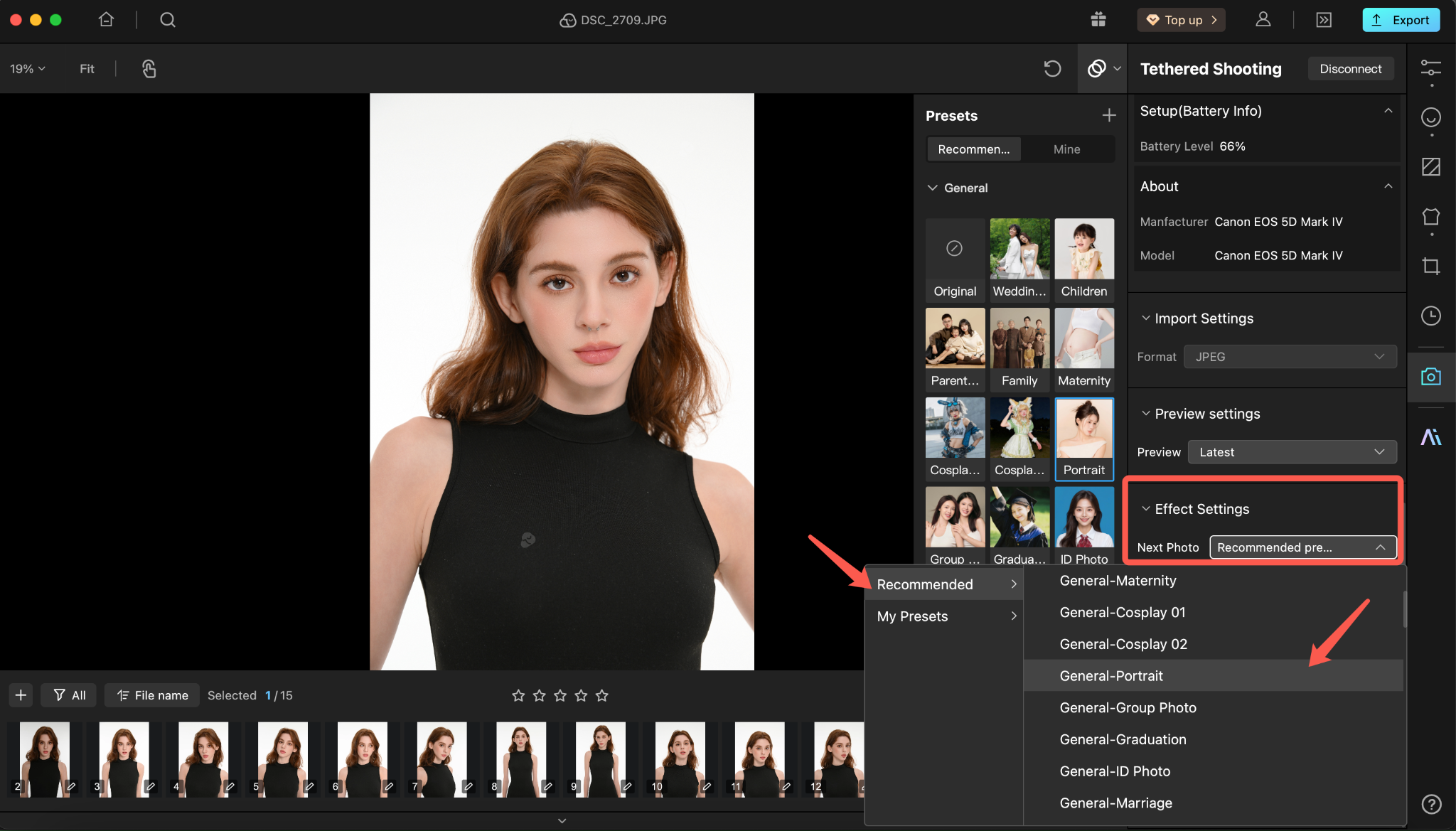
Set the look for your "Next Photo." You can choose from a wide range of official pro presets or apply your own saved presets. The selected effect will be automatically applied to the next photo as soon as it is captured.
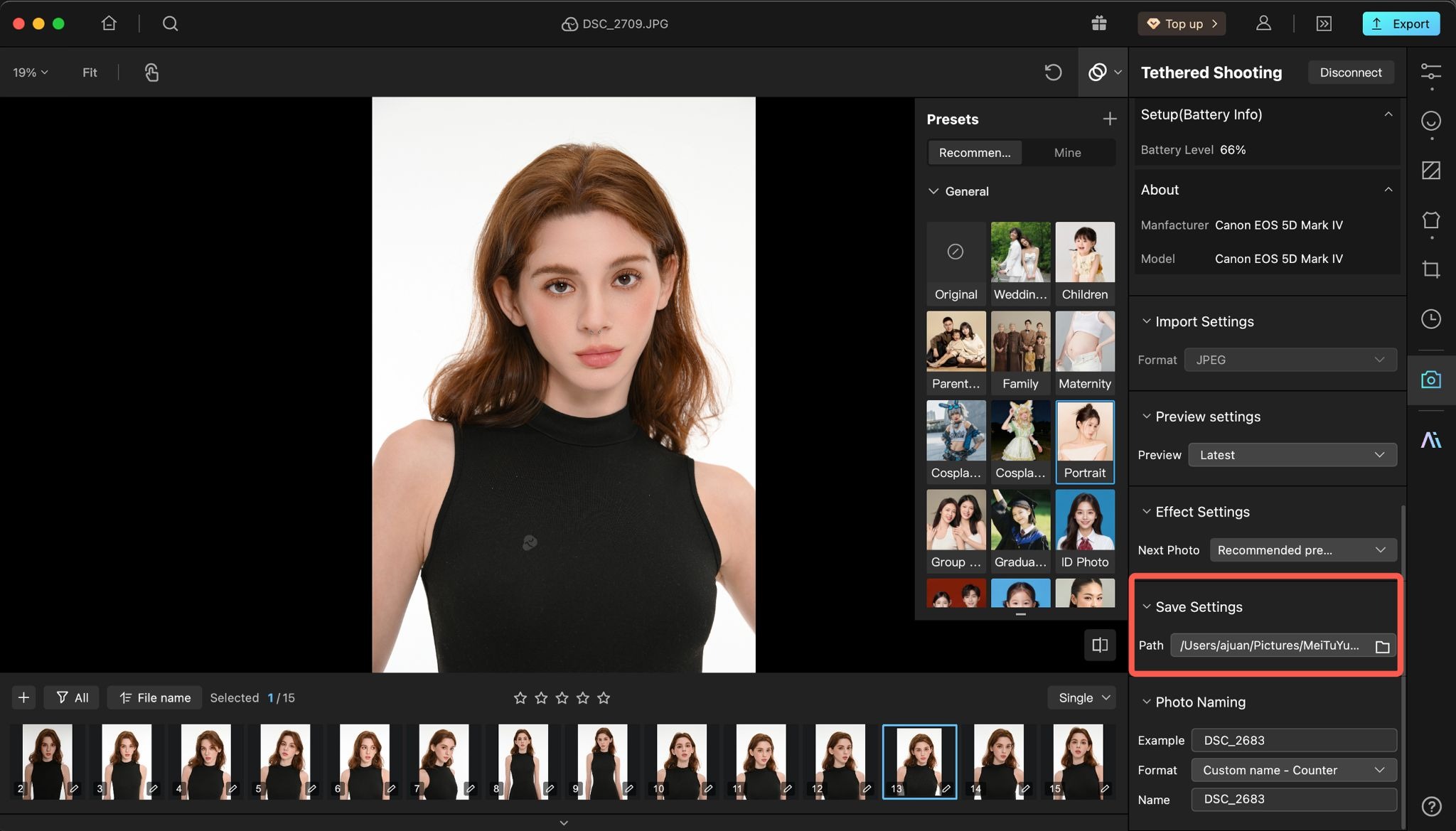
Customize the local destination folder on your computer where tethered images will be stored.
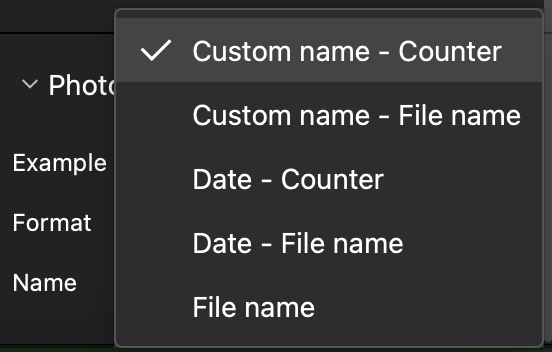
Kumoo offers five naming formats in the "Format" dropdown menu to suit your workflow:
[Custom Name - Counter]
[Custom Name - File Name]
[Date - Counter]
[Date - File Name]
[Original File Name]
If you encounter connection issues, please check the following items first:
1. Is a memory card installed in the camera?
2. Is the camera powered on with the correct internal settings?
3. Is the USB cable undamaged and securely plugged in?
4. Does your USB cable support data transfer (not just charging)?
5. Has the computer granted Kumoo permission to access the camera?
6. Is your camera model on our Supported Devices List?
1. Try using a different USB port or a different data cable.
2. Avoid using USB hubs or adapters; try a direct connection to the computer. If an adapter is necessary, ensure it is OTG certified.
3. Restart both the camera and the Kumoo client, then attempt to reconnect.
4. Try reinstalling the Kumoo software.
5. Provide feedback or seek assistance in our Beta Testing Group.
Discover how Kumoo makes tethered shooting simple and efficient.