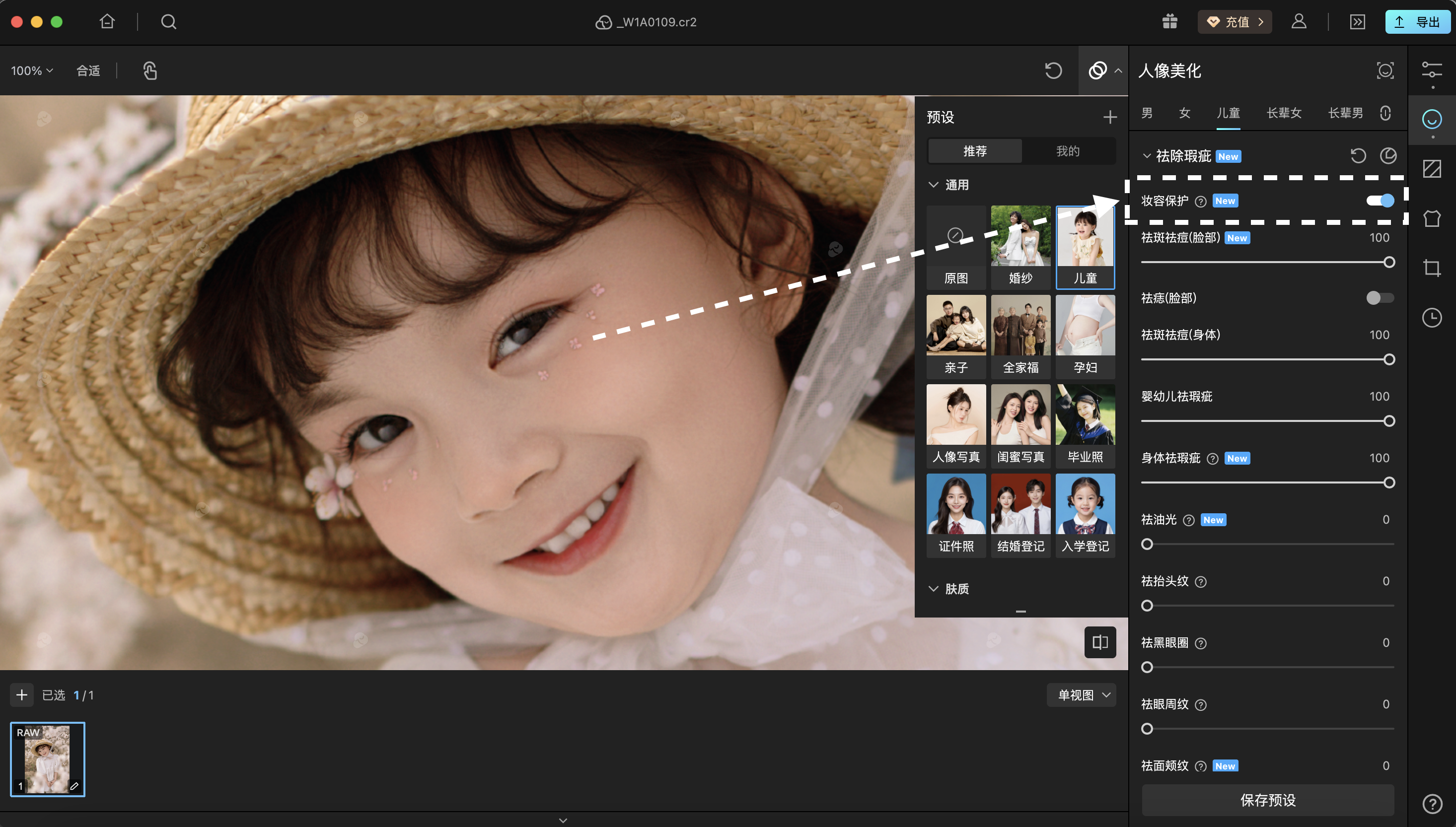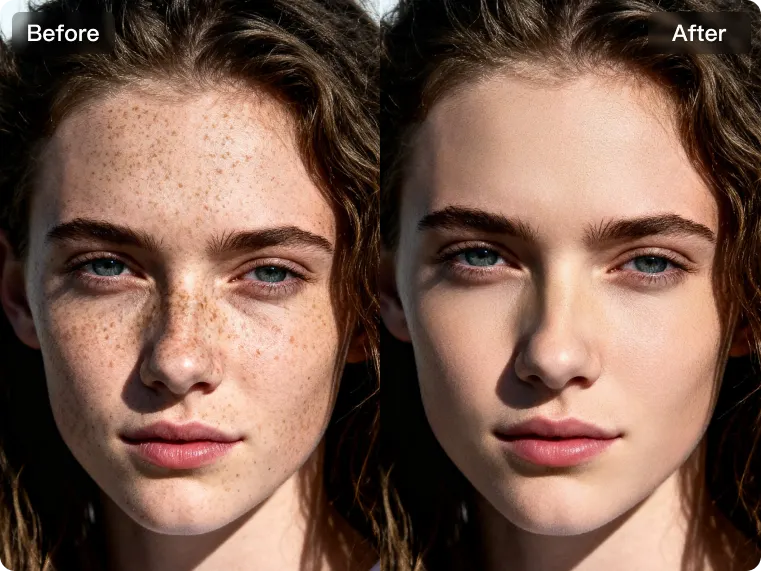
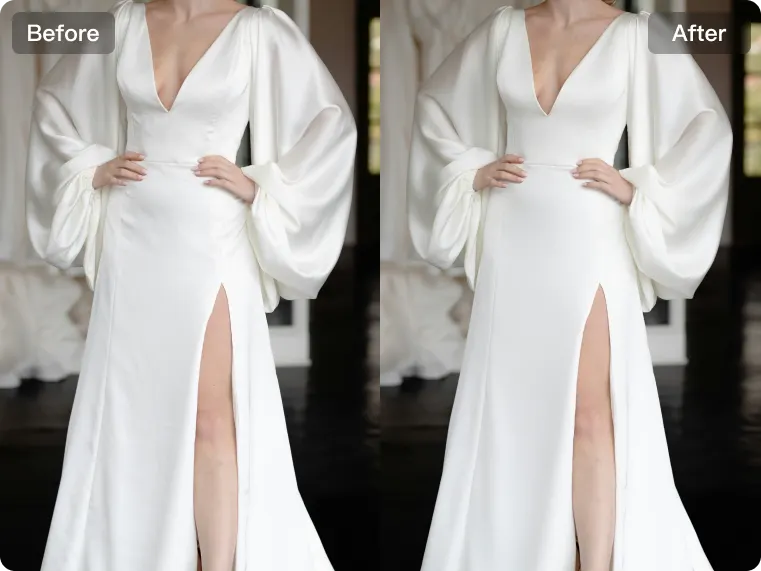

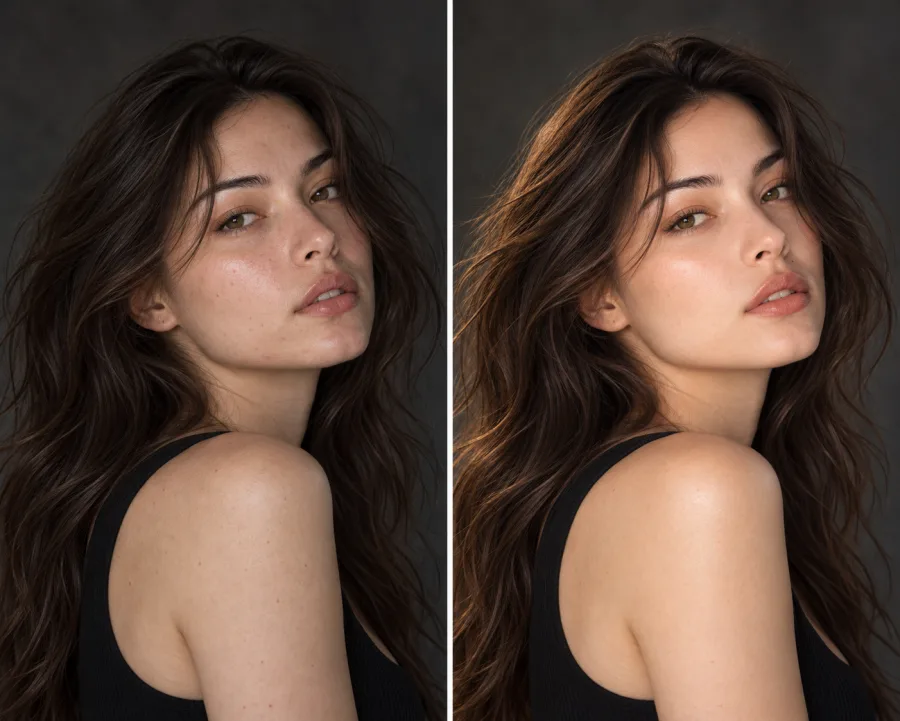
Kumoo provides Protected Areas for retouching scenarios where you need to preserve specific facial details, accessories, distinctive features, or objects in the background.
After applying a Face Retouching effect, a Protected Areas icon will appear in the corresponding face retouching section.
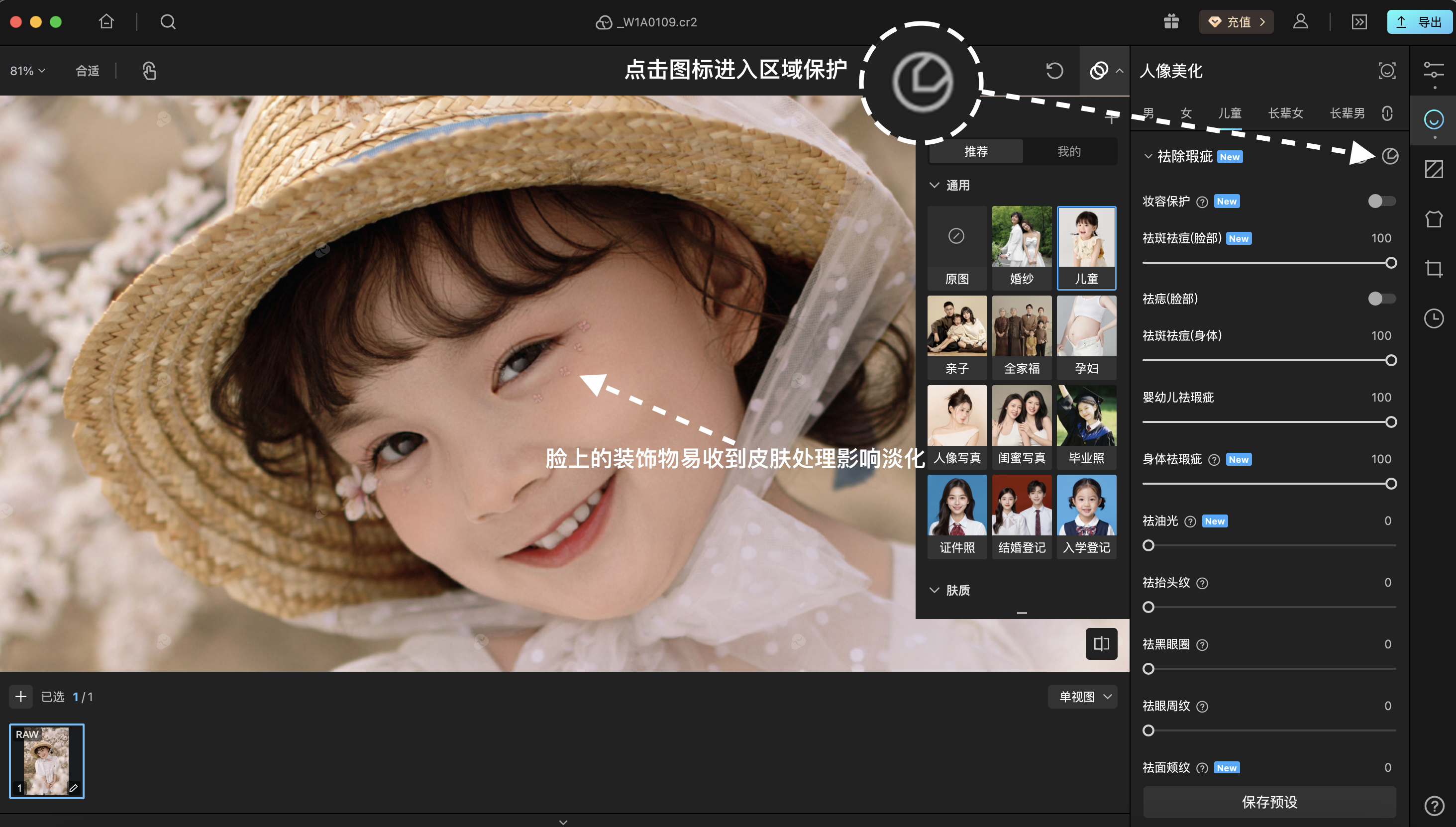
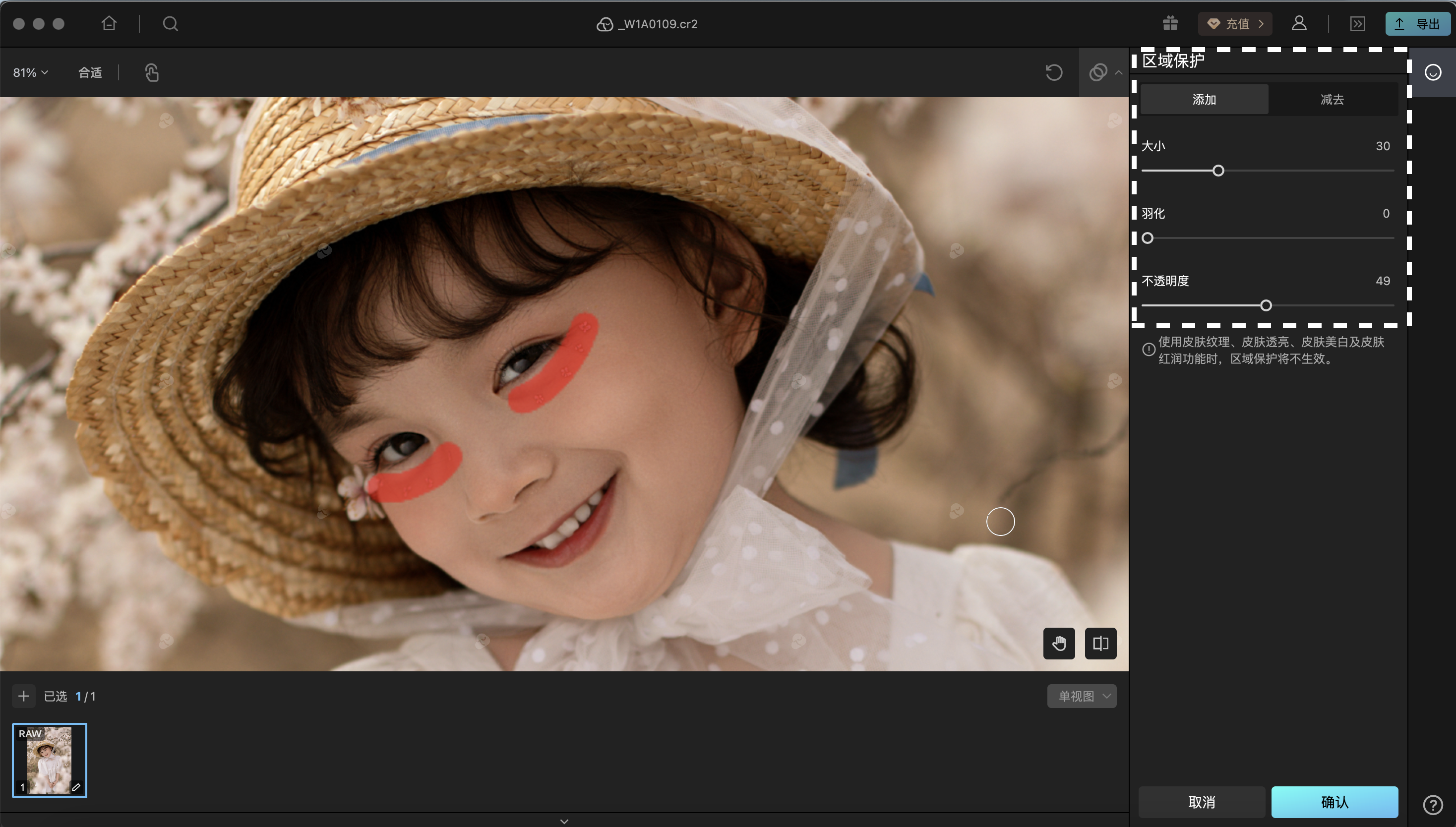
Open the Protected Areas tool and paint over the areas you want to preserve. To remove part of the protected area, switch to “Subtract” and paint over the area you want to exclude.
Unprotected areas are shown in red. Once you are satisfied with the selected area, click “Confirm”. The protected areas will remain unchanged and will not be affected by the retouching effect.
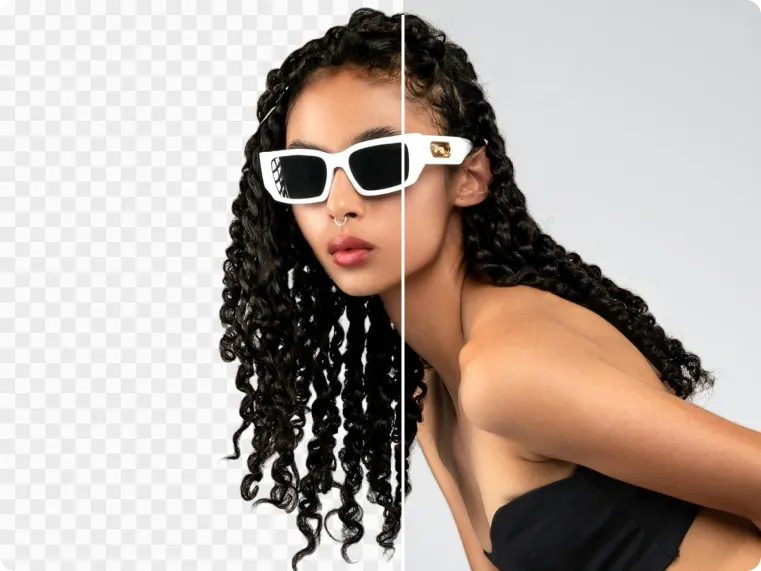
Protected Areas is also available when removing and replacing backgrounds.
After replacing the background, click the same Protected Areas icon to open the area adjustment tool. Paint over the parts of the image you want to keep, and Kumoo will preserve those areas during background removal and replacement.
This allows specific objects or details to remain in the final image without being affected by the background editing process.