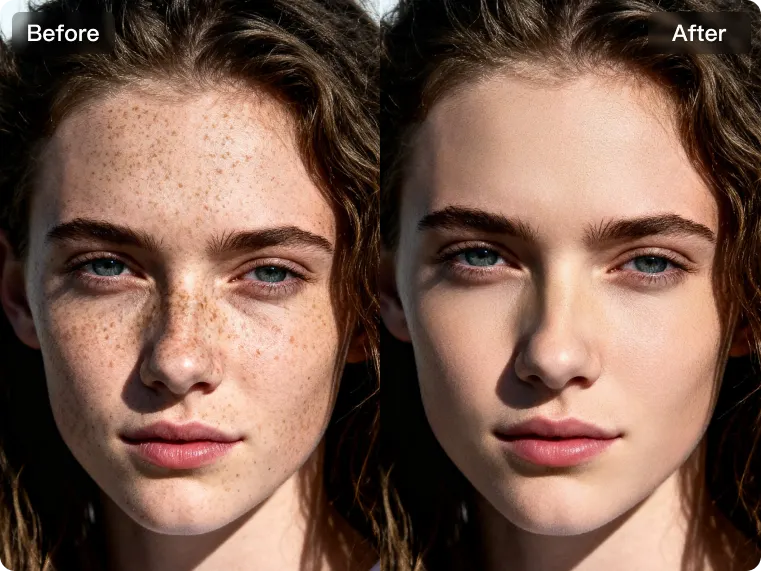
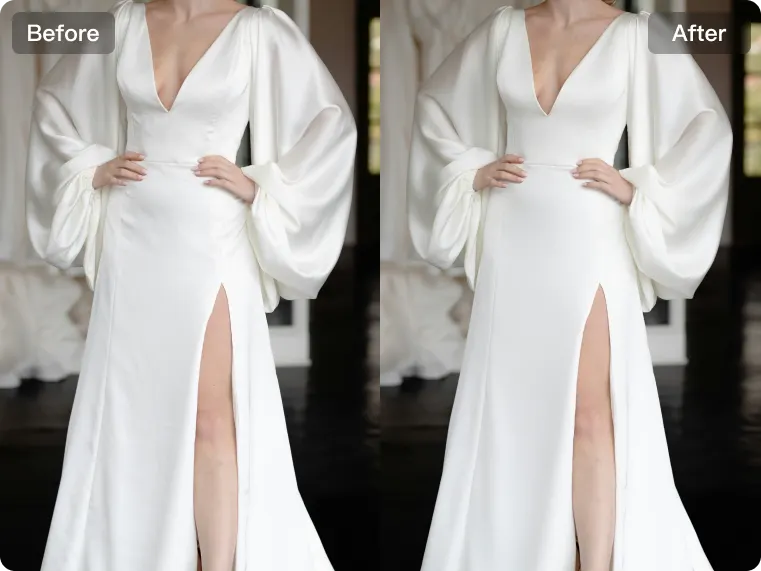
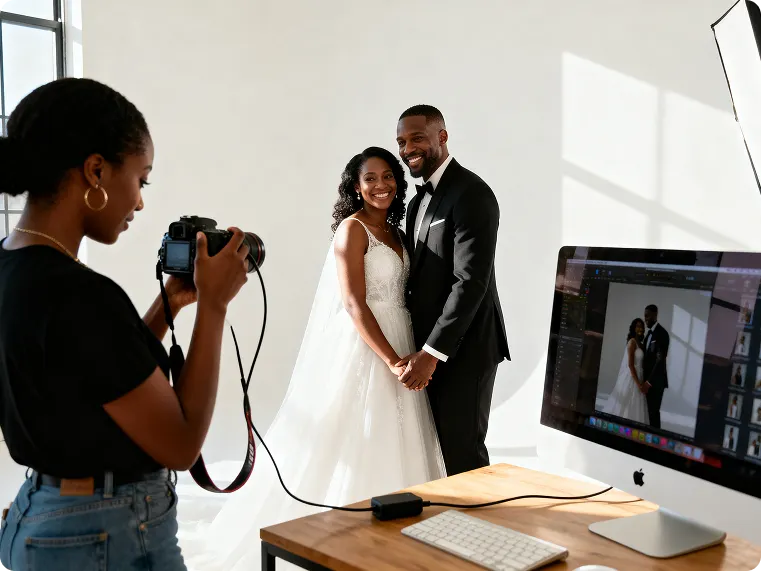
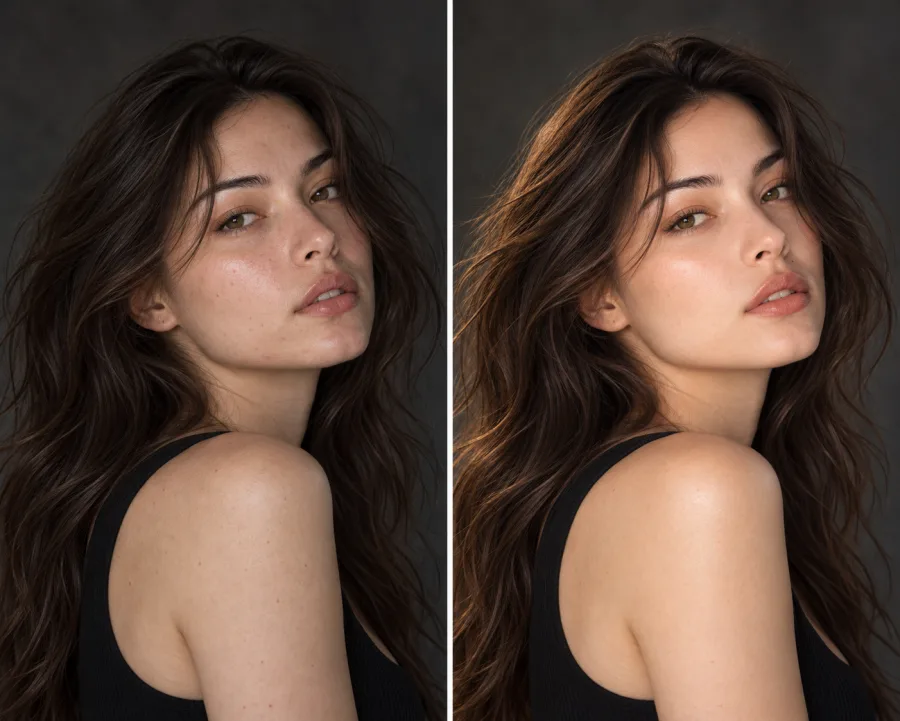
Kumoo provides two efficient ways to retouch multiple photos at once: apply a saved preset to selected photos or copy selected retouching settings from one photo and apply them to others.
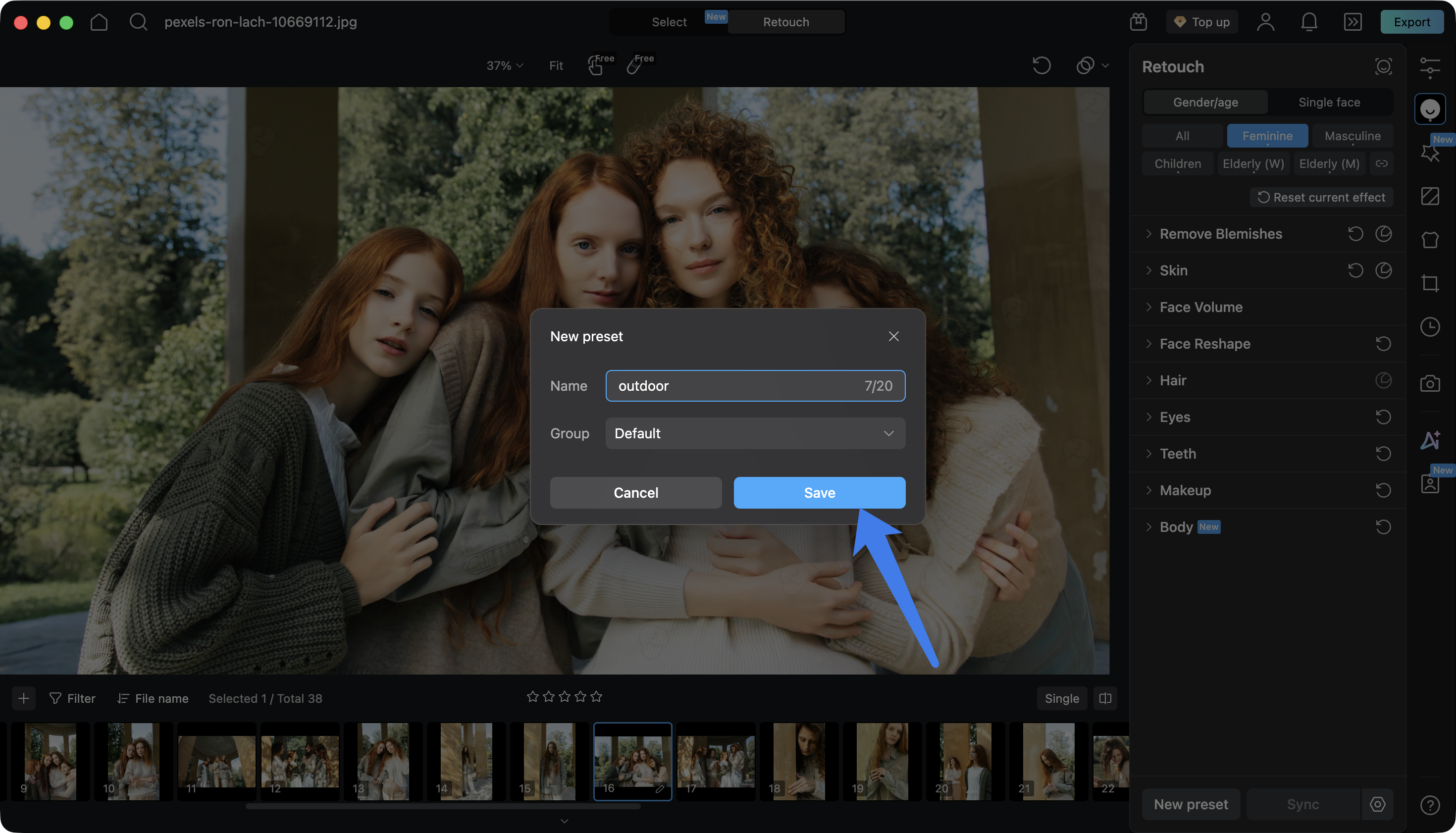
After finishing retouching a photo, click “New Preset” in the bottom-right corner of the retouching interface.
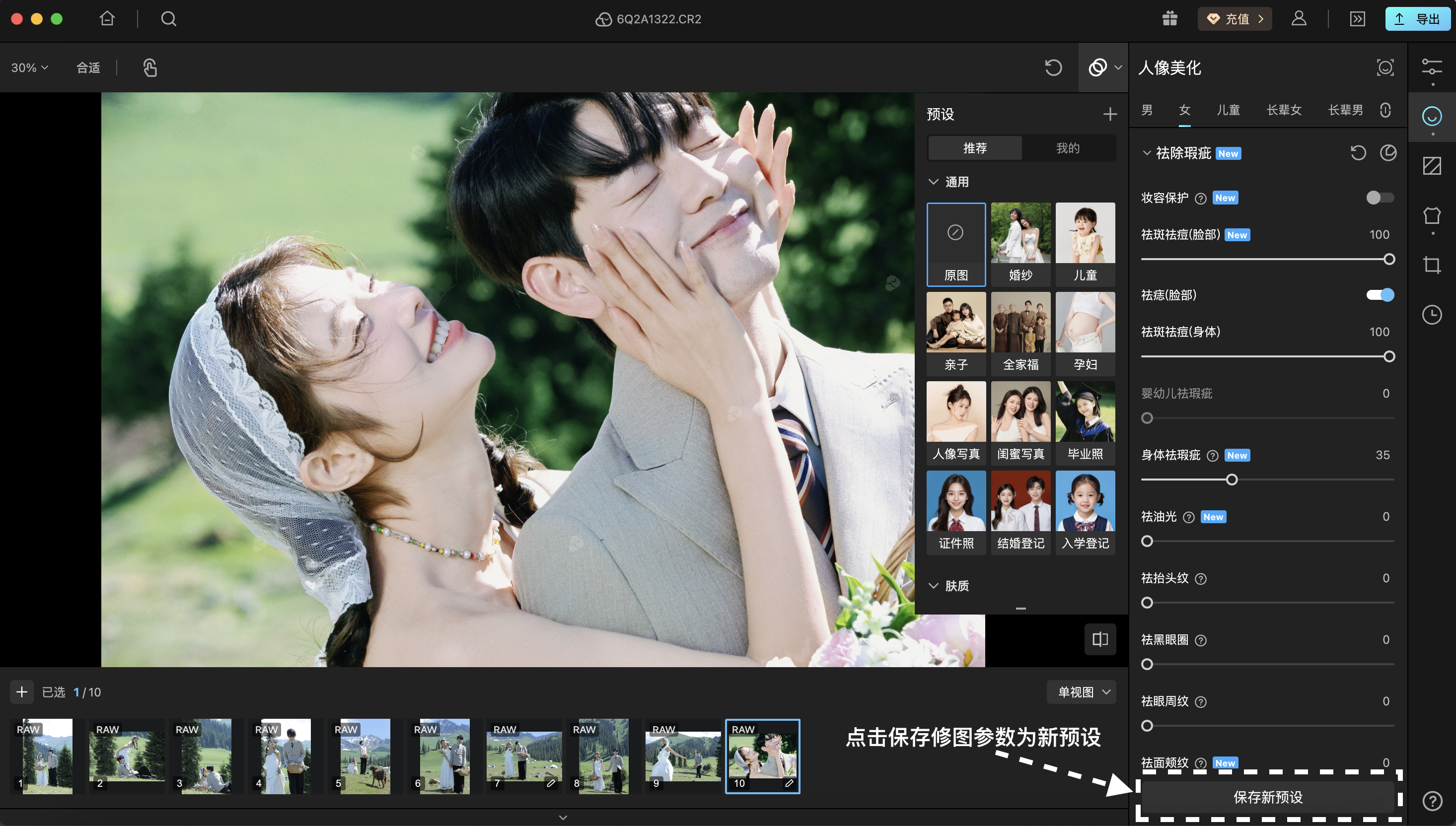
Enter a preset name and select a preset group to complete the save.
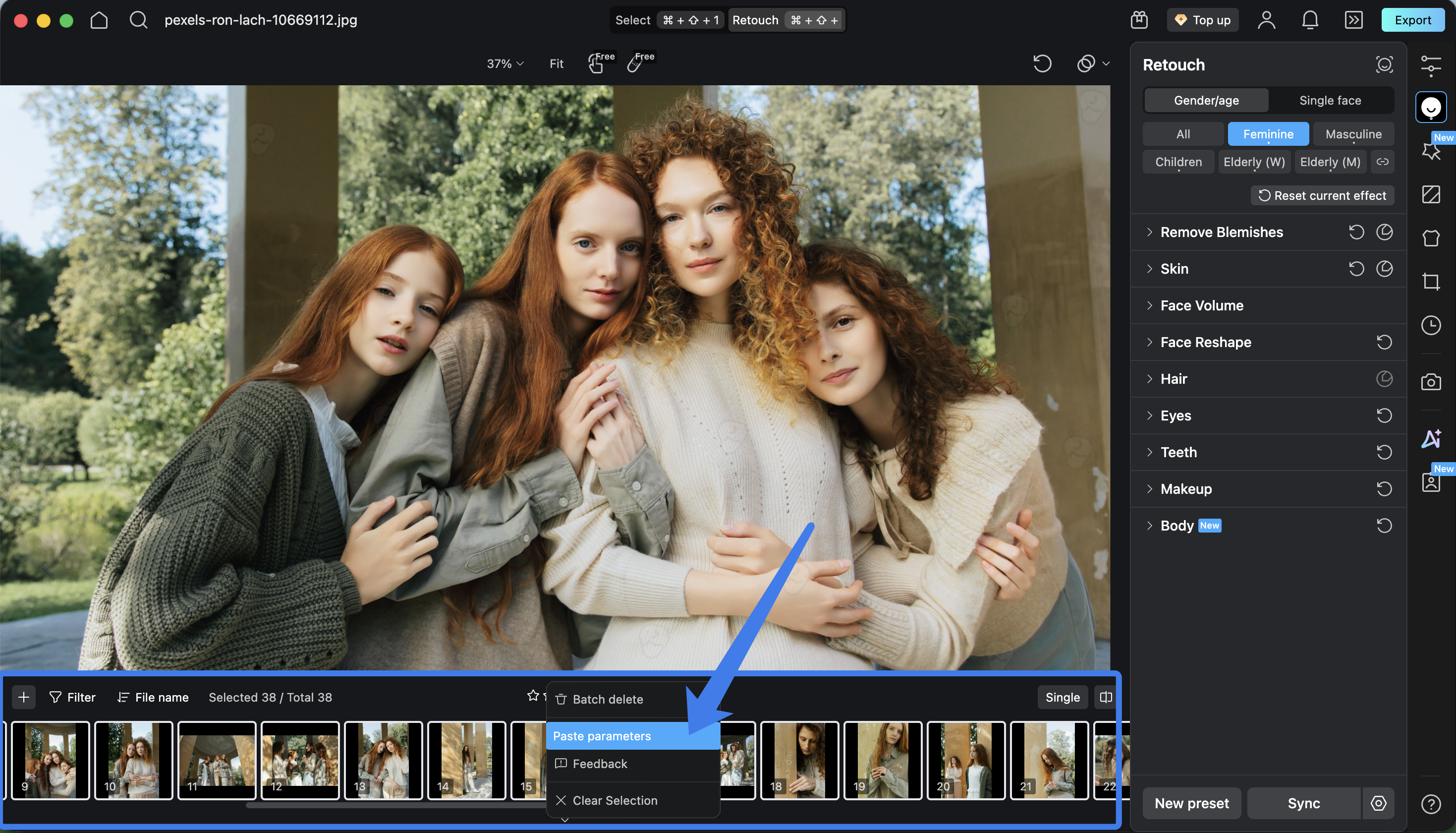
Select the photos you want to retouch in batches. To select all photos, press “Ctrl + A” on Windows or “Command + A” on macOS.
Selected photos will be highlighted with a white border in the photo strip on the left. Click the preset you want to use to apply it to all selected photos at once.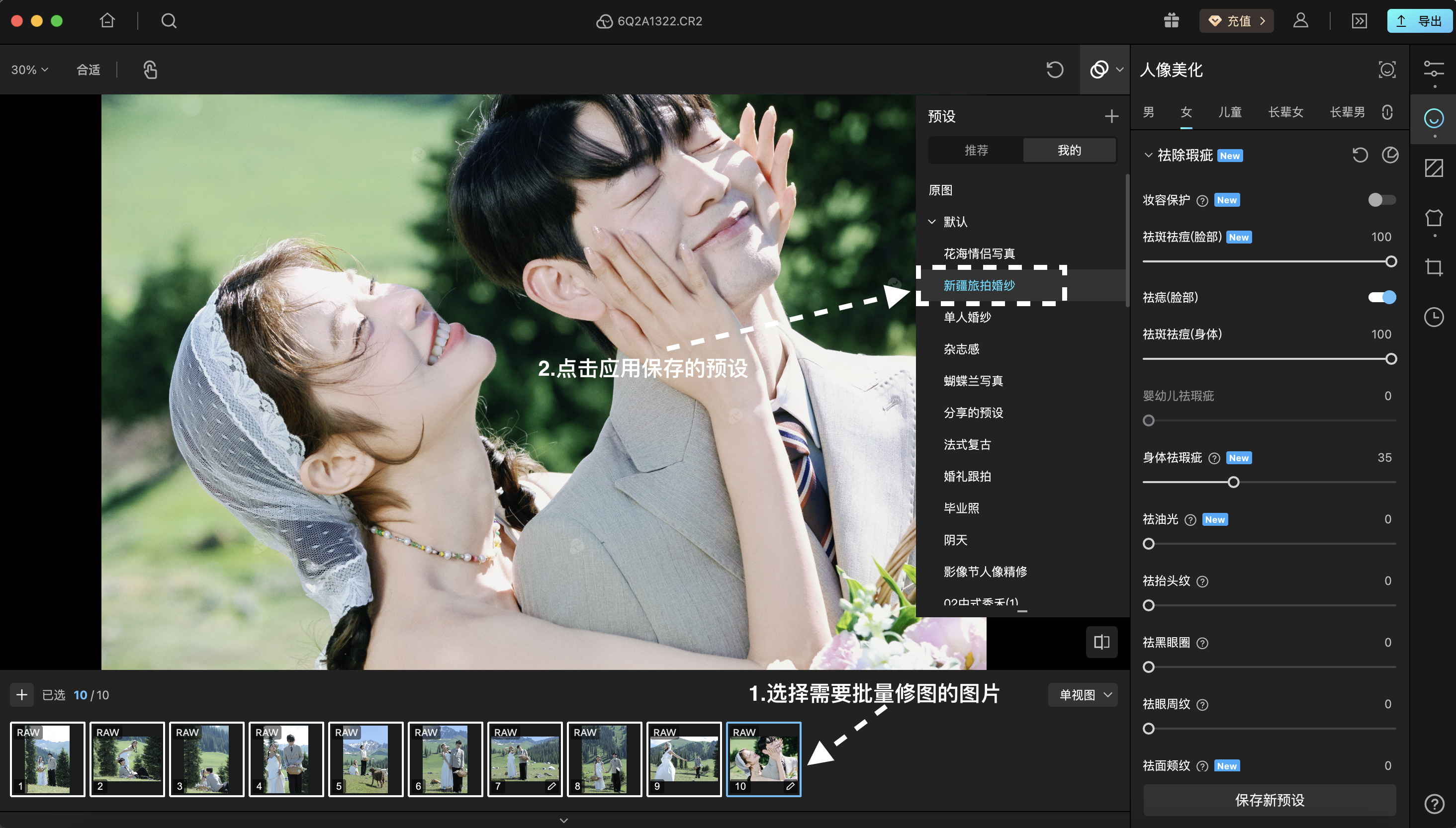
Once batch retouching is complete, click each photo to review the retouching results.
Select a retouched photo, then right-click and choose “Copy parameters”, or press “Ctrl + C” on Windows or “Command + C” on macOS.
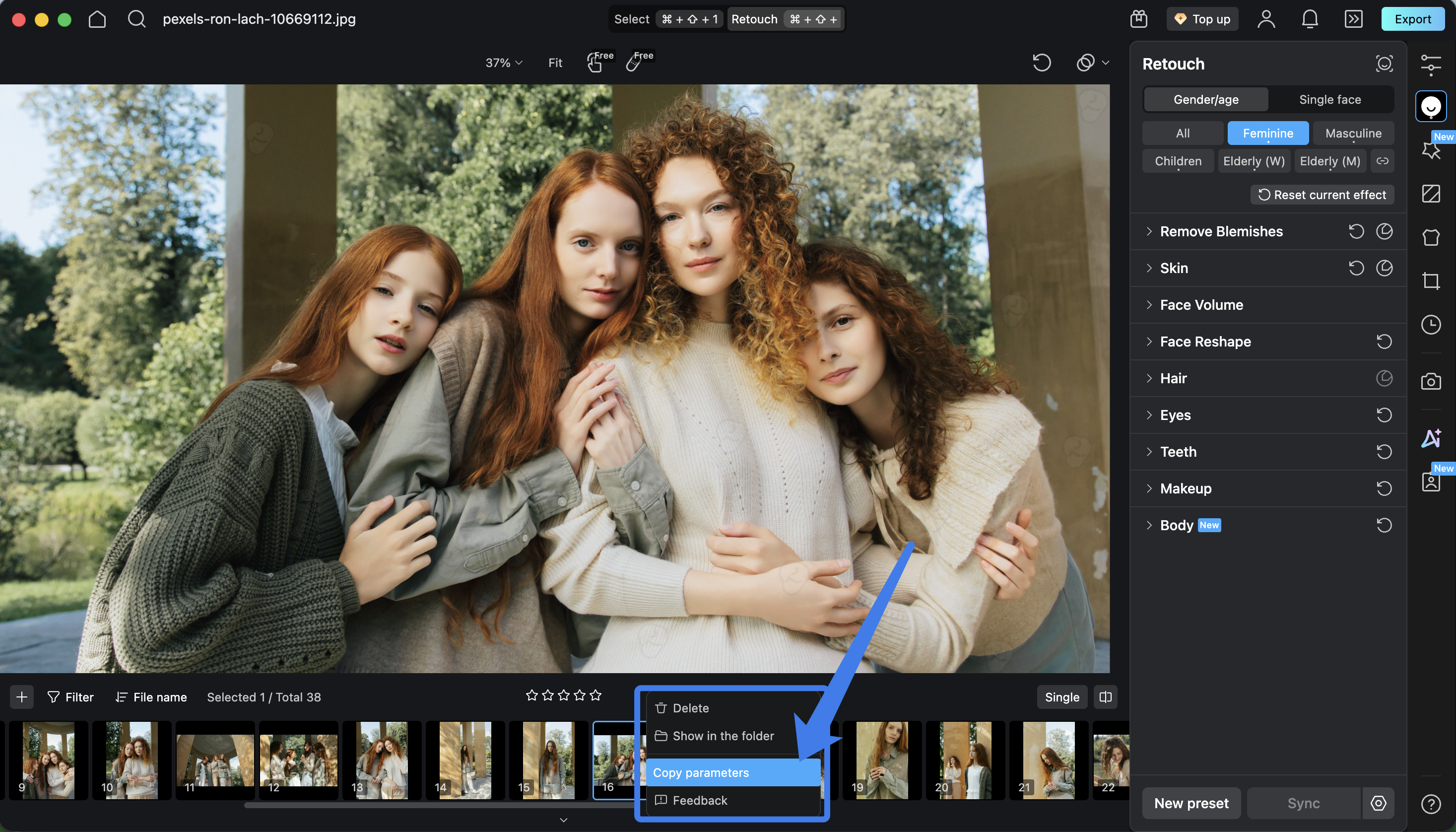
A settings selection window will appear, allowing you to customize which retouching settings you want to copy. Select the desired settings to complete the copy.
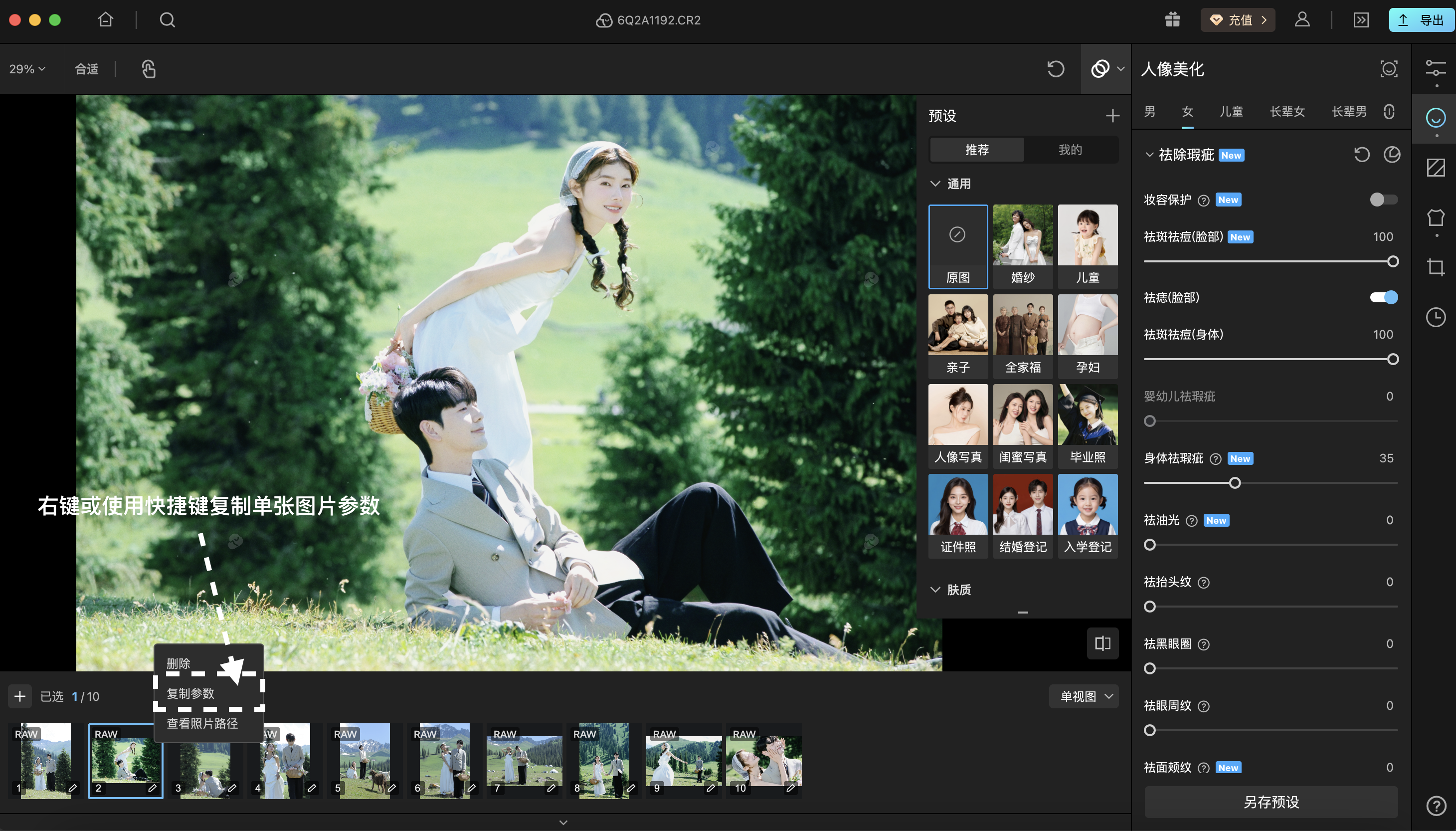
Select the photos you want to retouch. To select all photos, press “Ctrl + A” on Windows or “Command + A” on macOS in the photo strip on the right.
With the target photos selected, right-click and choose “Paste parameters”, or press “Ctrl + V” on Windows or “Command + V” on macOS to apply the copied settings to all selected photos.