Step 1: Planning Your Halloween Portrait
The foundation of any great Halloween portrait is conceptual clarity. Think about the mood you want to capture -- spooky, mystical, or playful -- and choose characters or themes accordingly.
Tips for planning:
- Mood boards: Gather inspiration for costumes, makeup, and background ideas. Pinterest or Instagram can help you visualize the vibe.
- Theme selection: Decide whether your shoot will feature classic monsters like vampires and witches, or more fantastical characters such as ghosts, fairies, or aliens.
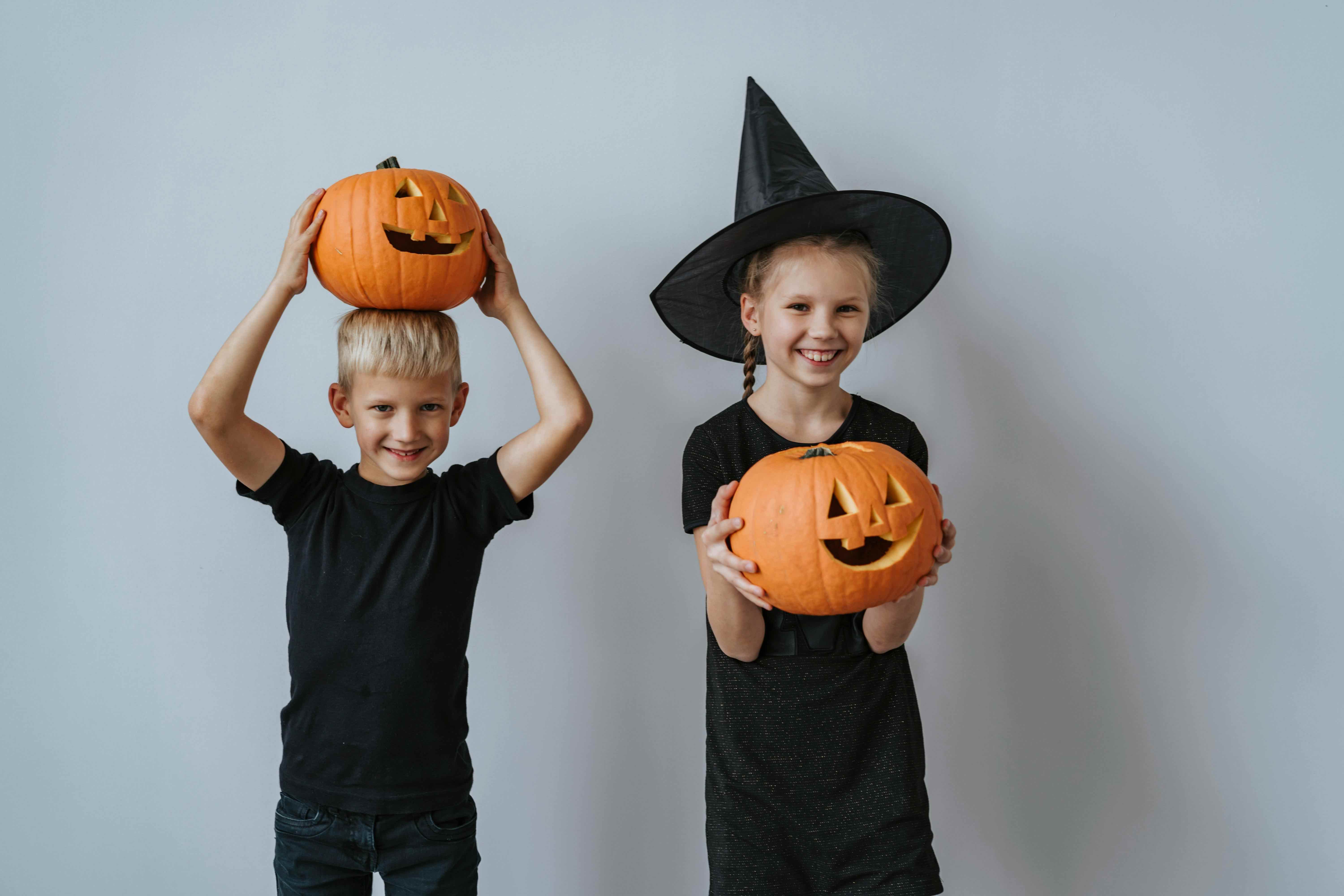
- Family or group portraits: Ensure costumes and poses complement each other for cohesive storytelling.
Step 2: Costume, Makeup, and Setting
2.1 Costume & Makeup
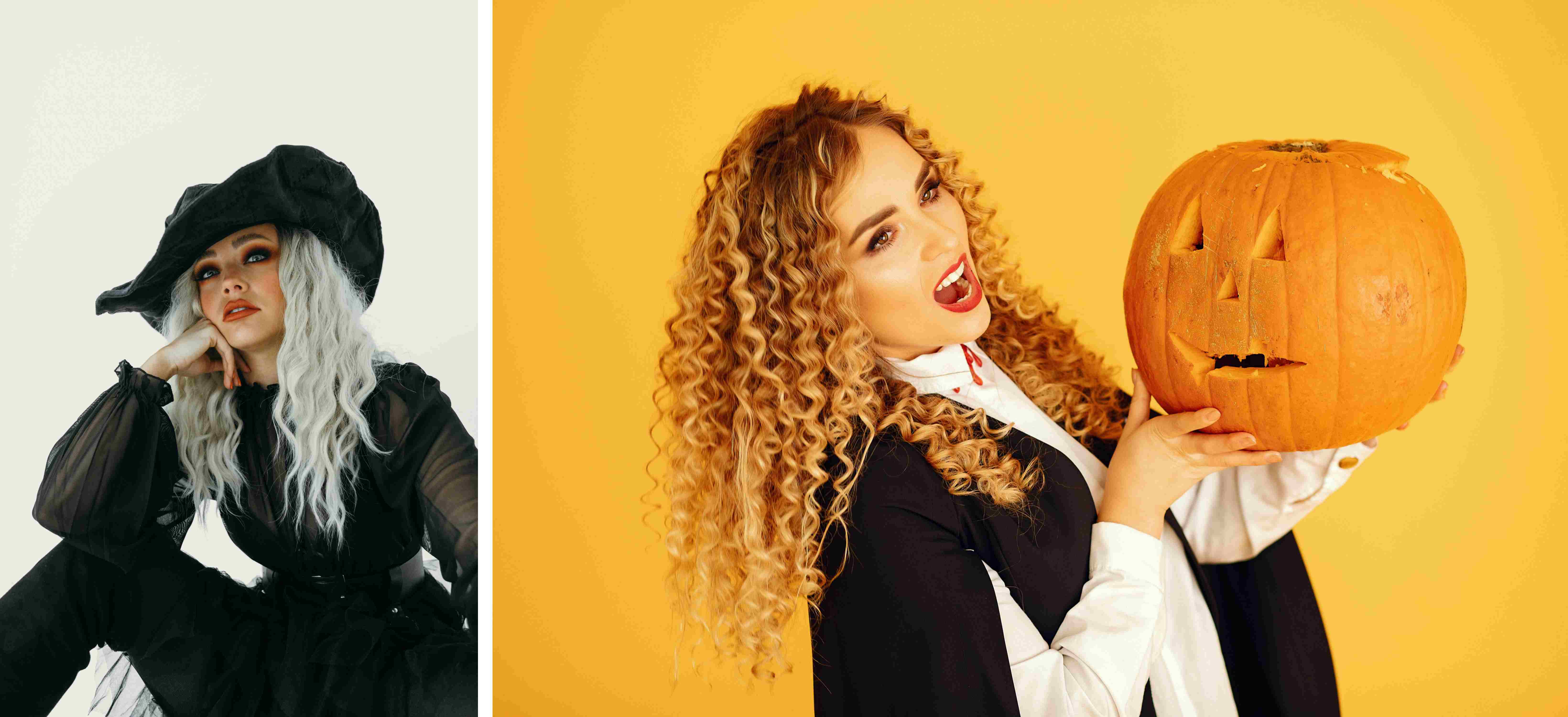
Costumes are your first step in creating believable characters. High-quality or DIY outfits that match your theme help set the tone. For makeup:
- Use bold eyeliner and shadow to emphasize eyes.
- Experiment with face paint, shimmer, or colored pigments for supernatural effects.
- Slightly exaggerate features for dramatic impact in photos.
2.2 Location & Background
A compelling backdrop enhances the storytelling of your portrait:
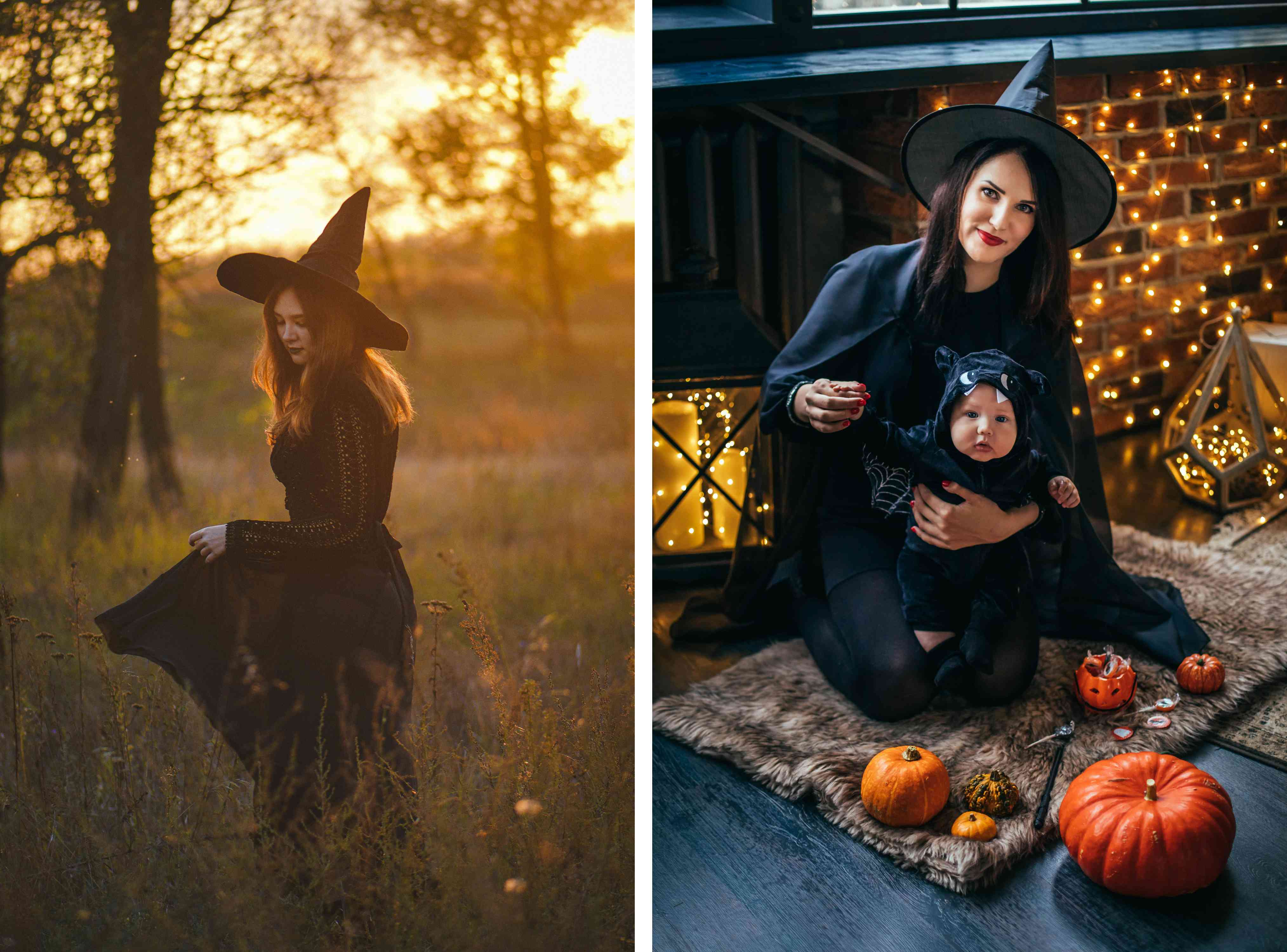
- Outdoor locations: Forests, abandoned buildings, or foggy fileds add depth and mystery.
- Indoor setups: Dimly lit rooms, decorated backdrops, or candle-lit interiors can create a spooky, cinematic vibe.
Step 3: Capturing the Portrait
Even when planning to edit in post-production, getting a solid in-camera shot is crucial:
3.1 Pre-shot Settings
- Camera settings: Shoot in RAW for flexibility. Prime lenses (f/1.8-f/2.8) isolate your subject, while wide-angle lenses capture the enviroment.
- Focus on the eyes: Eyes are the focal point -- sharpness here will make later editing easier.
- Composition: Try low angles for an imposing look, close-ups for detailed makeup, or motion blur for ghostly effects.
- Props & accessories: Tripods, smoke machines, and theme props add layers of authenticity.
3.2 Lighting
Lighting sets the atmosphere:
- Low-key lighting: Adds drama and shadow for a haunting look.
- Colored gels or LEDs: Reds, greens, and blues create supernatural or eerie effetcs.
- Diffusers: Soften harsh shadows while maintaining moodiness.
Step 4: AI-Powered Halloween Retouching with Kumoo
After capturing your portraits, Kumoo AI photo editor can bring your Halloween vision to life. This AI tool allows you to:

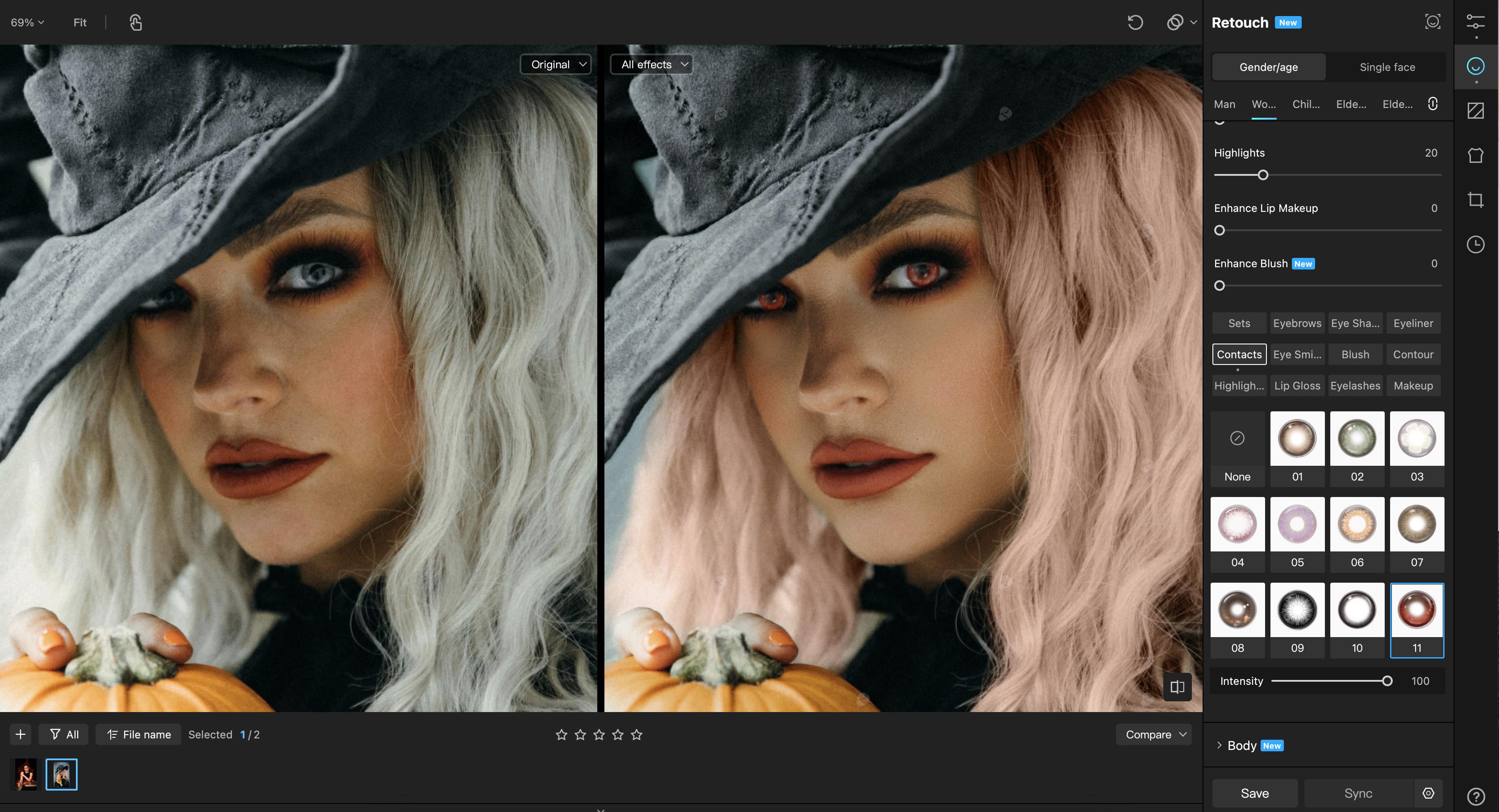
3.1 Change Eye Color
- Transform ordinary eyes into glowing reds or mystical greens. Kumoo offers 11 types of colored contact lenses, which work even better when paired with the eye light features.
- AI ensures natural blending with realistics reflections.
- Ideal for vampires, witches, mystical creatures, or cosplay characters.
3.2 Hair Color Transformation
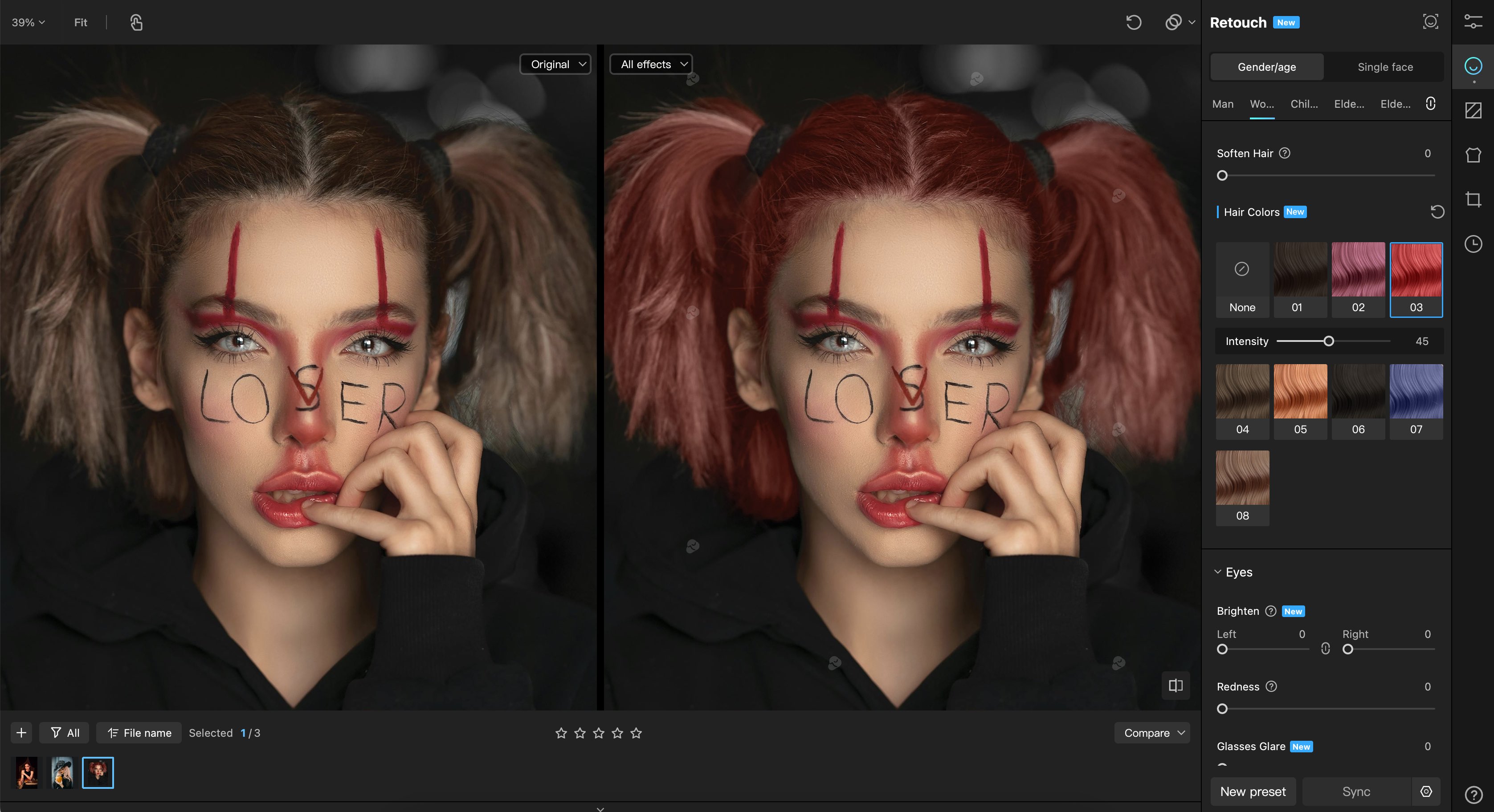
- Experiment with bold streaks or complete color shifts.
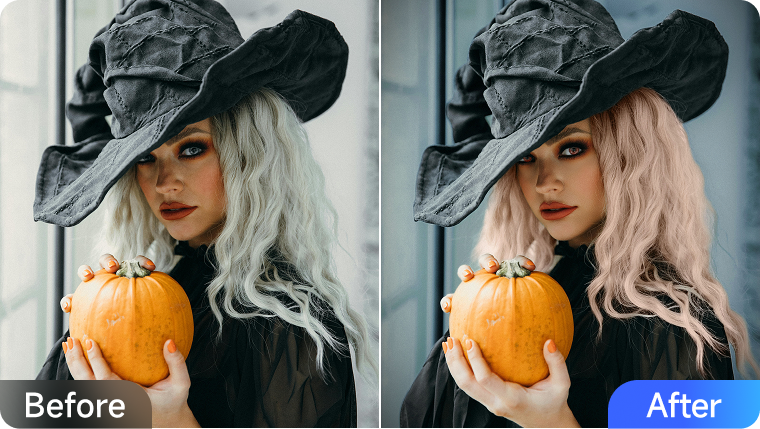
- Kumoo's AI offers 8 different hair colors to switch freely, with adjustable intensity. It can help adjust hair texture and lighting for lifelike results.
3.3 Background Enhancement
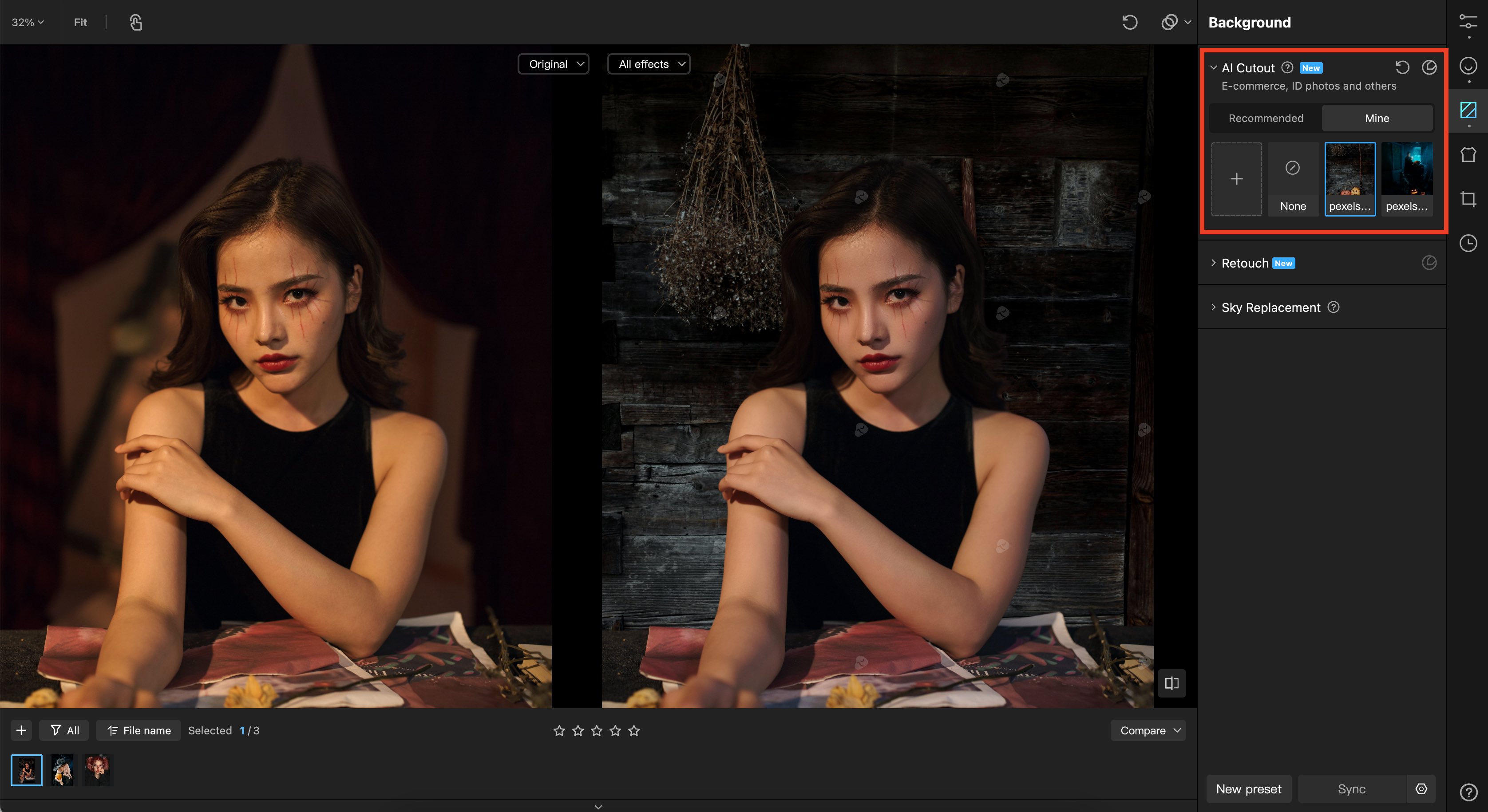
- Change background: Swap dull backgrounds for spooky forests, haunted mansions, or foggy graveyards.
- Remove background clutter: The AI detects and removes unwanted subjects while preserving realistic lighting and edges.
3.4 Makeup enhancement
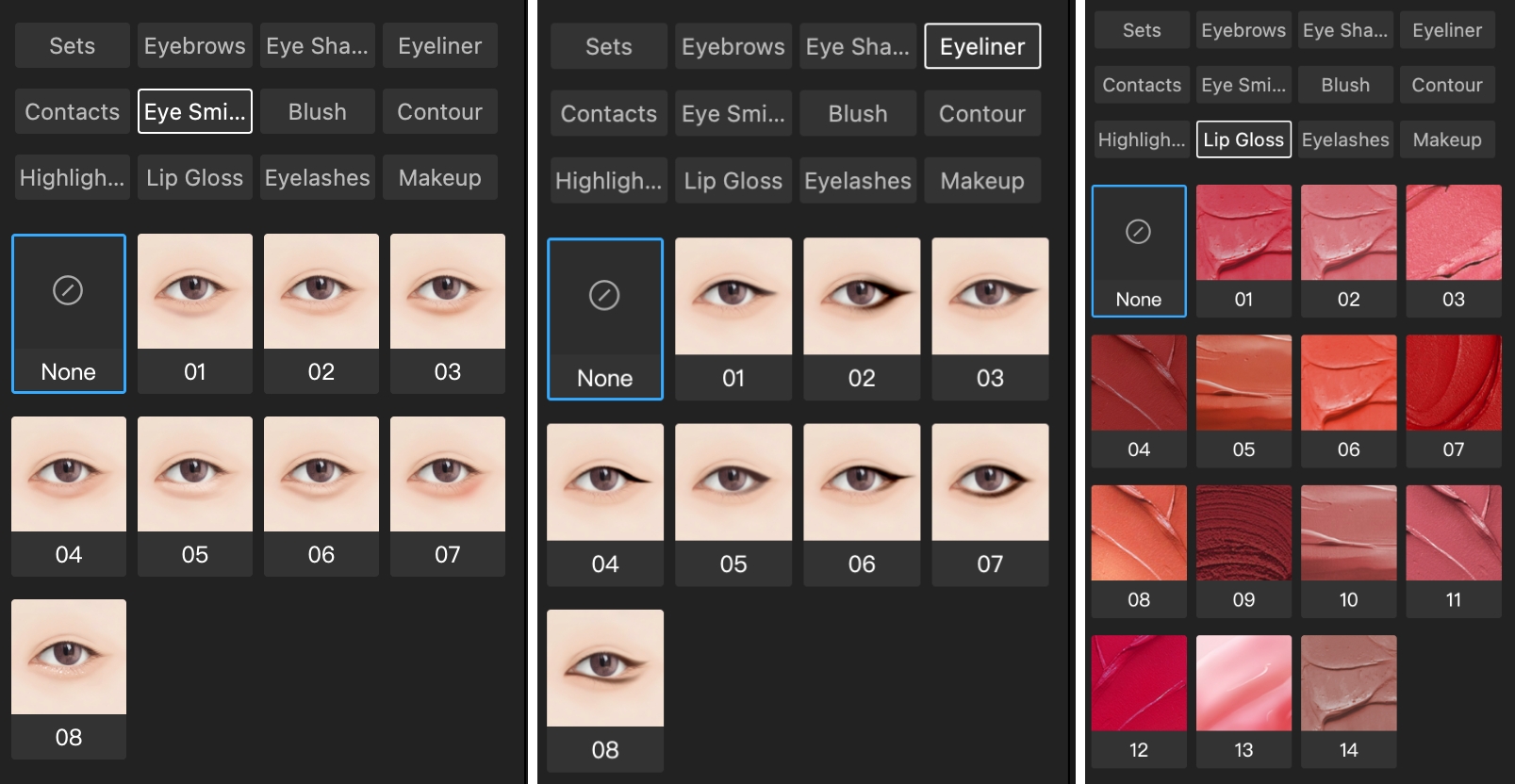
Eyes are the soul of any portrait -- especially in Halloween-themed images. Subtle digital makeup can completely transform the mood of your shot. With Kumoo AI, you can enhance eyeliner for a sharper look, add soft or dramatic eyelashes to emphasize expression, or deepen eye shadows for a mysterious, smoky effect.
Read more: How to Retouch Your Lips Like a Pro(No Makeup Needed)
Step 5: Advanced Retouching Techniques
To fully enhance your portraits, consider these finishing touches:
- Color grading: Use cool tones for ghostly effects, warm reds for fiery, demonic aesthetics. Furthermore, try using the local color adjustment feature to fine-tune the background tones and make your subject pop.
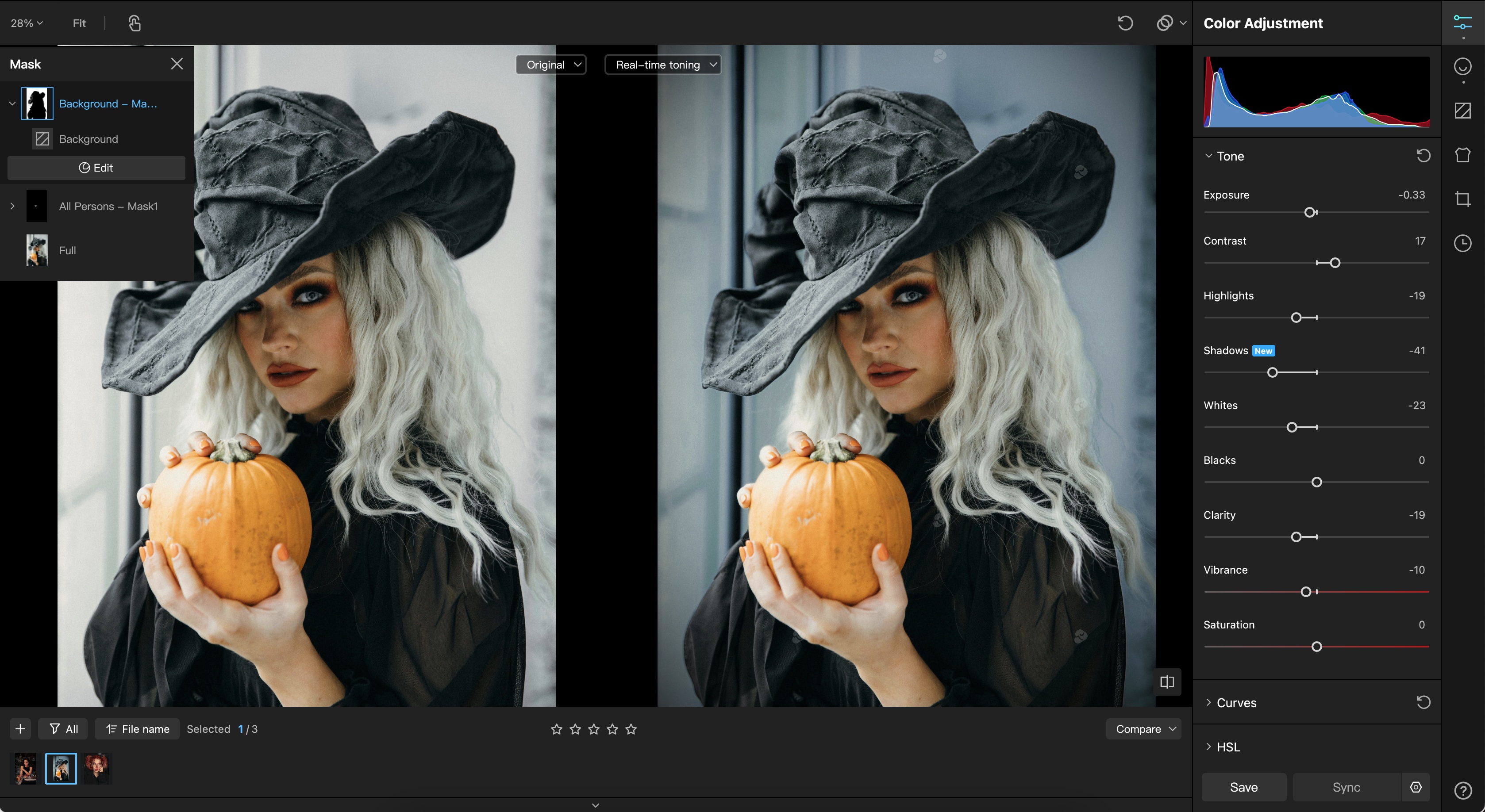
- Skin retouching: For hauntingly Halloween portraits, skin should look ethereal but still real. Use skin retouching tools in Kumoo AI to smooth uneven areas while keeping natural texture like pores and fine lines. To create supernatural vibes, slightly desaturate or tint the skin -- pale tones evoke ghostly elegance, while cool hints of blue, lavender, or gray add an eerie touch.
- Batch editing & presets: Apply consistent styles across multiple photos, saving time on larger projects.

Step 6: Exporting and Sharing
Once edits are complete:
- Export at high resolution for print or social media.
- Use sRGB color profile to maintain consistent tones online.
Share your masterpiece with friends, clients, or followers!
Final Thoughts
Halloween portraits are about imagination, mood, and storytelling. By combining thoughtful shooting techniques with Kumoo AI's powerful tools -- eye color changing, hair transformations, and background editing -- you can produce spooky, professional-quality portraits in minutes.
Whether for cosplay, Halloween parties, or family portraits, digital retouching ensures your vision comes to life safely, quickly, and beautifully.
Ready to elevate your Halloween photography? Explore Kumoo AI and start transforming your portraits today!